A full tour of the program as it stands at version 1.5.7 — the counter, the books, the returns, the mandi floor, and the parts that keep all of it safe. Every screen below is the real thing.
Billing that fits the way the trade actually works
Rates move daily, a bag is counted but priced by the kilo, and the customer wants the balance on the paper. The bill screen was built for that, not adapted to it.
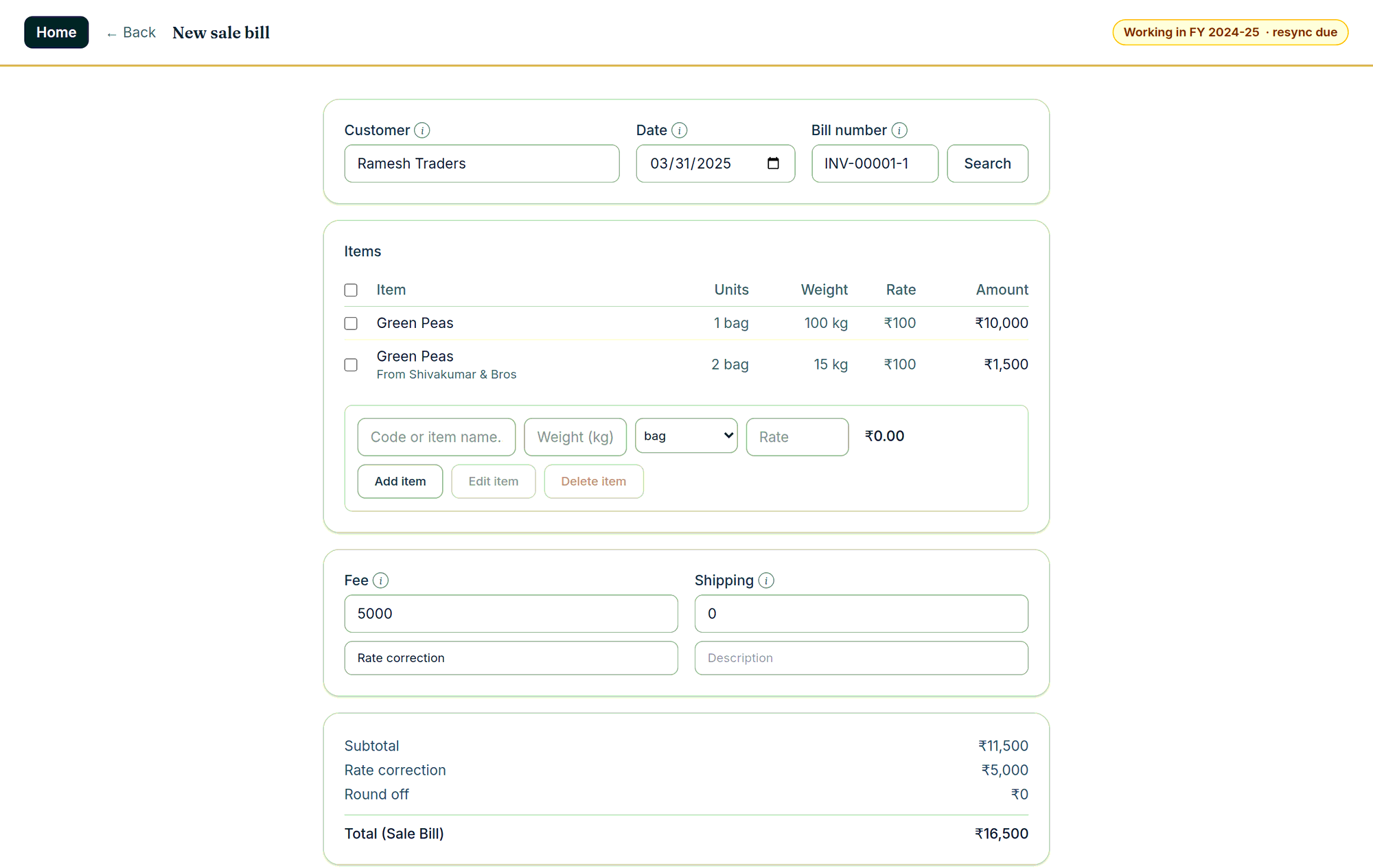
Count, weight, rate, Add item — each one Enter from the next.
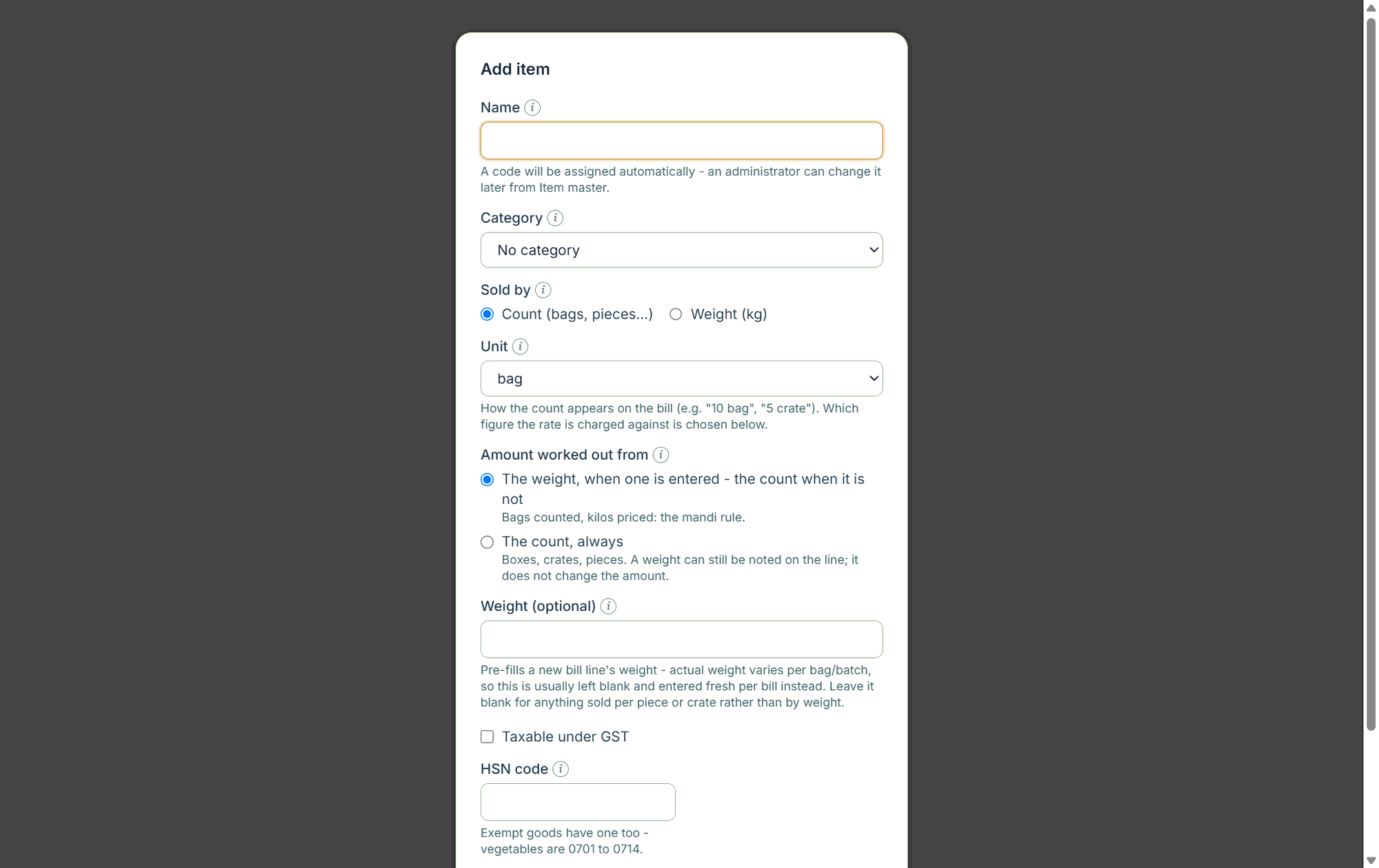
An item says whether it is sold by count or by weight, and what its amount is worked out from.
Documents it issues
Tax invoice, bill of supply, credit note, export invoice under LUT or with IGST paid, supply to an SEZ, deemed export, and supplies on reverse charge. The heading is decided by what is on the bill, not chosen from a menu.
Money on the line
Discounts by rupees or percentage, on a line or over the whole bill; prices that include GST worked back under Rule 35; fees and freight taxed with the goods under Section 15(2)(c); a visible round-off row.
Numbering
A three-letter prefix of your own and a five-digit sequence, consecutive and unique within the financial year as Rule 46(b) requires, resetting at each rollover and growing an extra segment rather than ever running out.
02 — The books
Ledgers, balances and the years behind them
Every customer and every grower carries a ledger by financial year, and the years are linked so that a correction in one is carried forward into all of them.
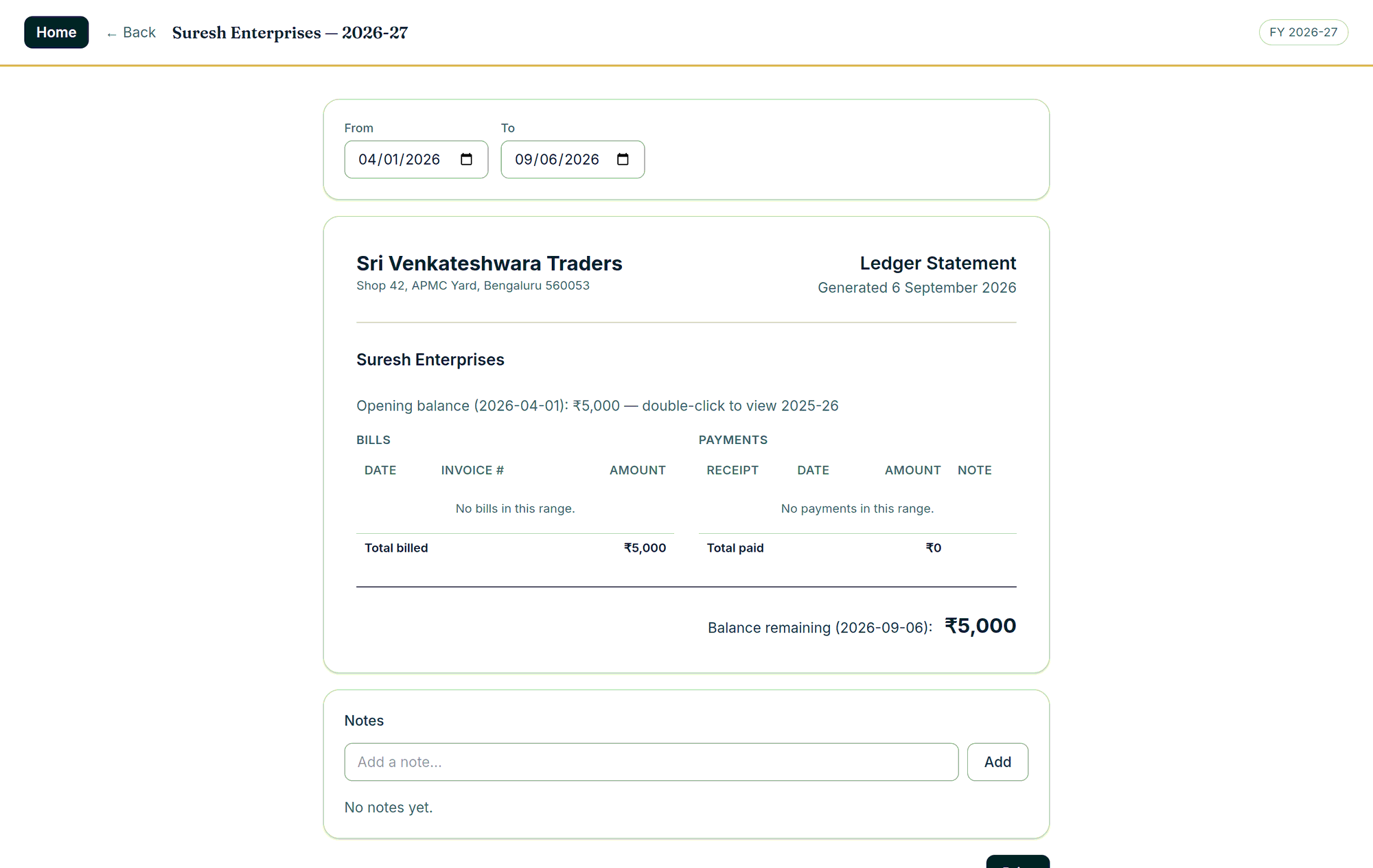
Bills on the left, payments on the right, balance at the bottom — the way a ledger book reads.
A ledger you can hand to the customer
Opening balance as at the start of your range, every bill and every payment in it, the running balance, the notes you added, and the closing figure. Print it or save it as a PDF from the same screen.
Credit balances shown as credit, not as a negative number
Notes with the author's name and date, for what was promised and when
Double-click the opening balance to open the archived year behind it
Print the whole list by balance, by ageing, or by who is still active
Payments, receipts and credits
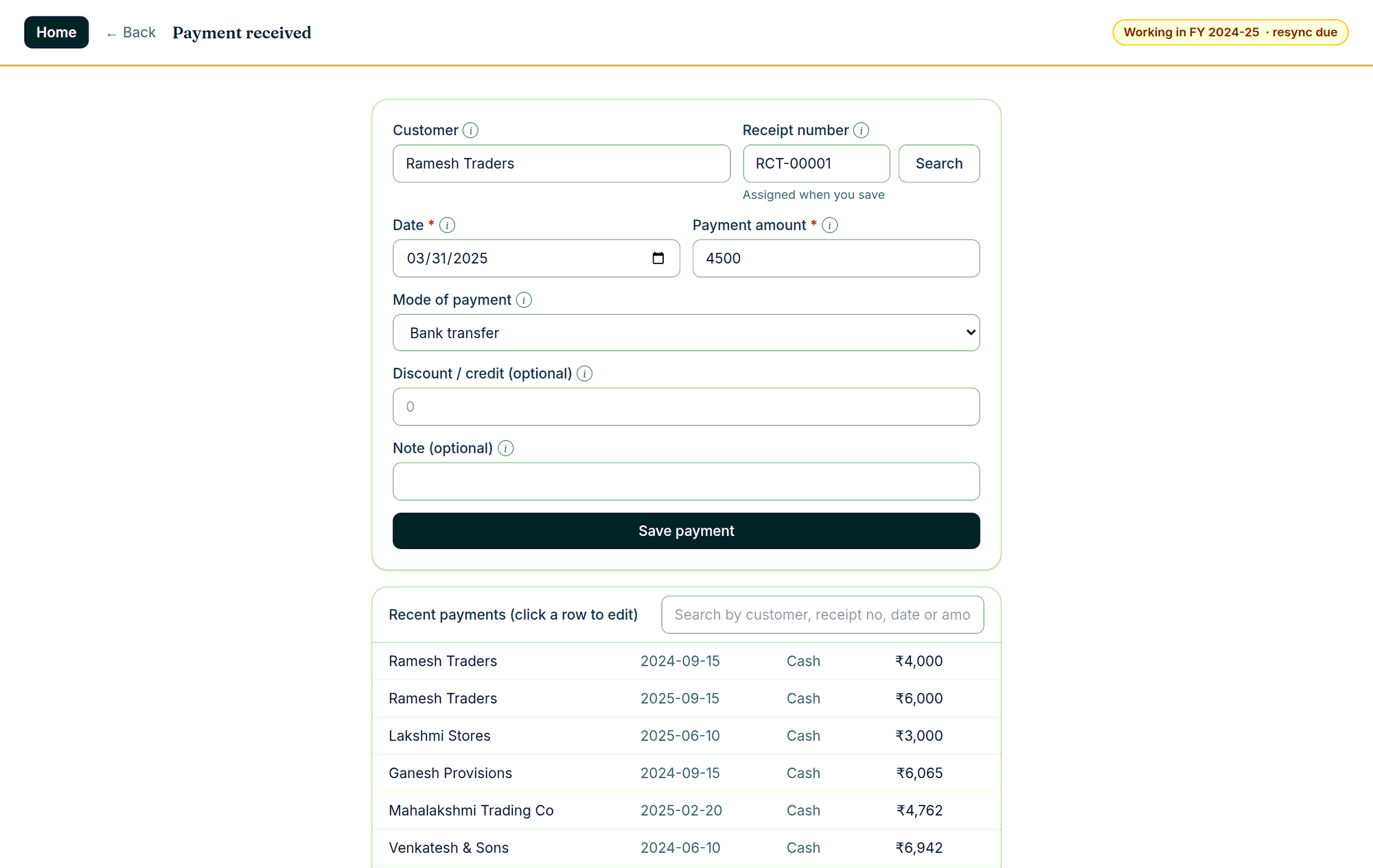
A payment takes a date, an amount, a mode and an optional discount or credit — and both the amount and the credit post against the balance. A return or a spoilage allowance is just a payment of nil with a credit on it, so there is no separate concept to learn.
Cash, UPI, bank transfer, cheque or a mode you add yourself
Receipt numbers of their own, printable and reprintable
Recent payments listed beneath the form — click a row to correct one
Saving into a closed year warns first, then recalculates every later year
Recent payments sit under the form, so correcting yesterday's entry does not mean going looking for it.
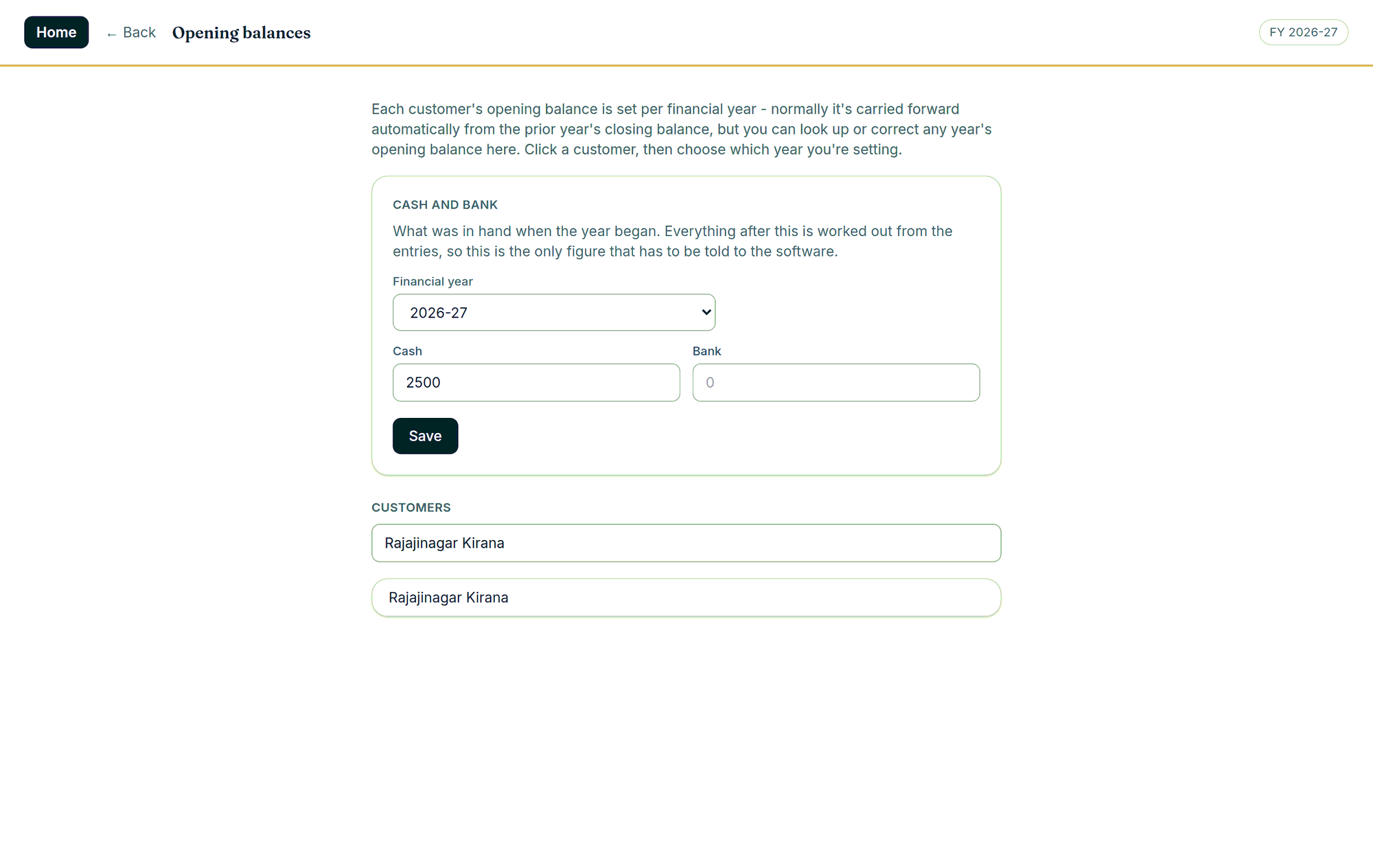
The only figures the software has to be told. Everything after them is worked out from the entries.
Opening balances, set per year
Balances normally carry forward on their own at rollover. When you are moving onto InBilling mid-year, or an old figure turns out to be wrong, any year’s opening balance can be looked up and corrected here — cash and bank included.
Set what was in the drawer and in the bank when the year began
Per customer, per financial year, with what is currently saved shown beside it
Import customers and items in bulk from a CSV rather than typing them in
Nothing with history is ever hard-deleted — only deactivated, so old bills keep their reference
03 — The other side
Purchases, expenses, cash and bank
A shop is not only what it sells. Supplier bills with their input tax, the wages and the tea and the transport, what is in the drawer against what is in the bank.
Supplier bills
With the input tax you can claim, and a purchase register that sums it for the month.
Expenses
Name what you spend on once — wages, tea, transport, rent — then record payments against it.
Money accounts
Cash banked or drawn out, transfers between accounts, and what each one holds today.
Reconciliation
Tick the bank statement off against the books and see what has not cleared.
04 — Reports
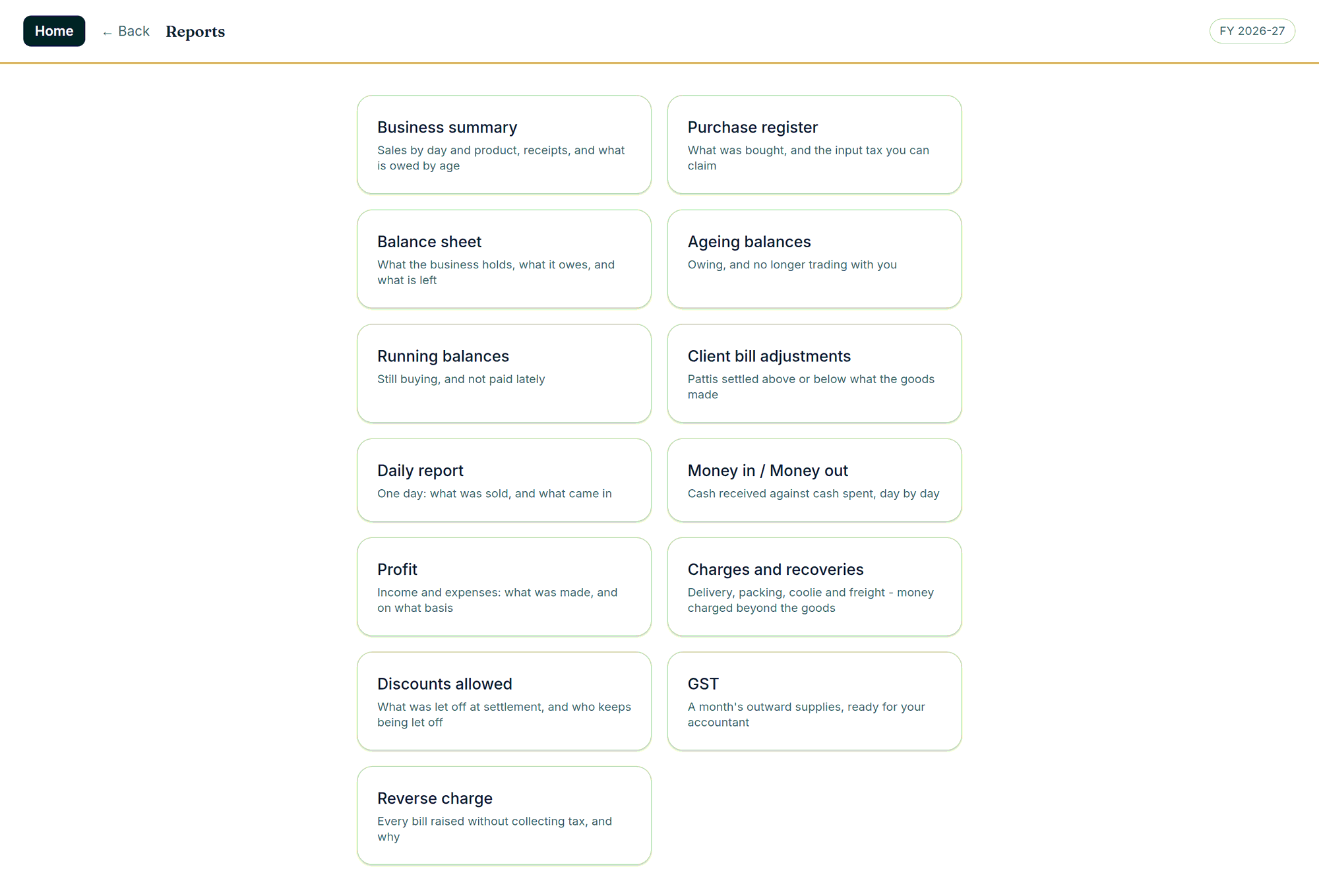
Fourteen reports, and none of them guesswork
Every one takes a date range, prints, and exports to Excel. Reports a business does not need are not shown to it — a mandi without GST billing never sees the balance sheet or the GST report at all.
Each report says in plain words what it answers.
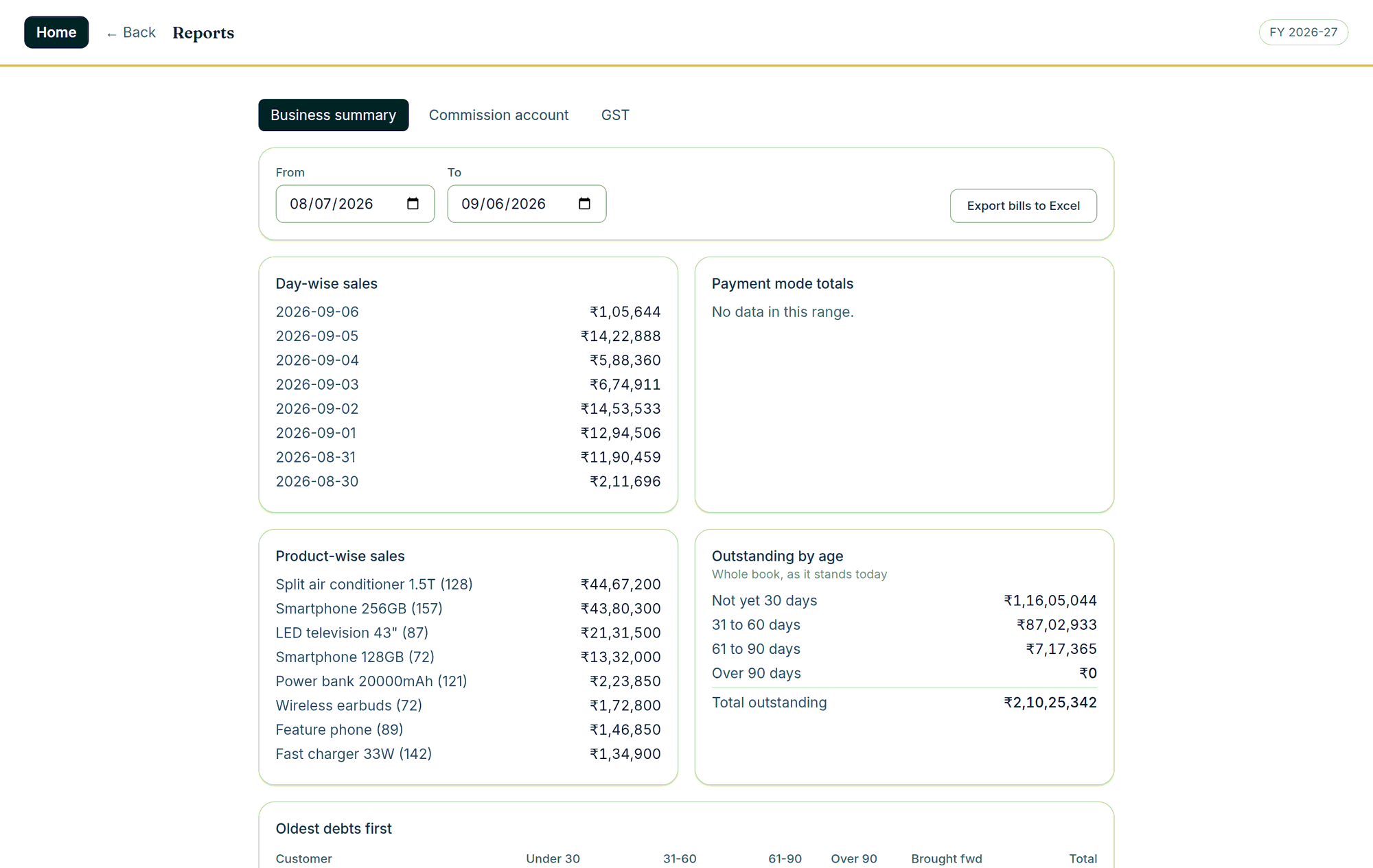
Day-wise, item-wise and category-wise sales, payment modes, and what is owed by age — on one page.
What was sold
Business summary, daily report, sales by day, item and category — with the quantity in the unit the line was actually priced in.
What is owed
Ageing balances, running balances, outstanding by age, and the customers who have stopped trading with you but have not paid.
What it made
Profit on the trading basis or the commission basis, money in against money out, charges and recoveries, discounts allowed, balance sheet, stock on hand.
05 — Safety
What happens when something goes wrong
The whole financial record of a business sits in one file on one machine. Most of the engineering in InBilling is about that fact.
It is honest about its limits, too: it proves whether records were changed outside the software, which is what an audit needs.
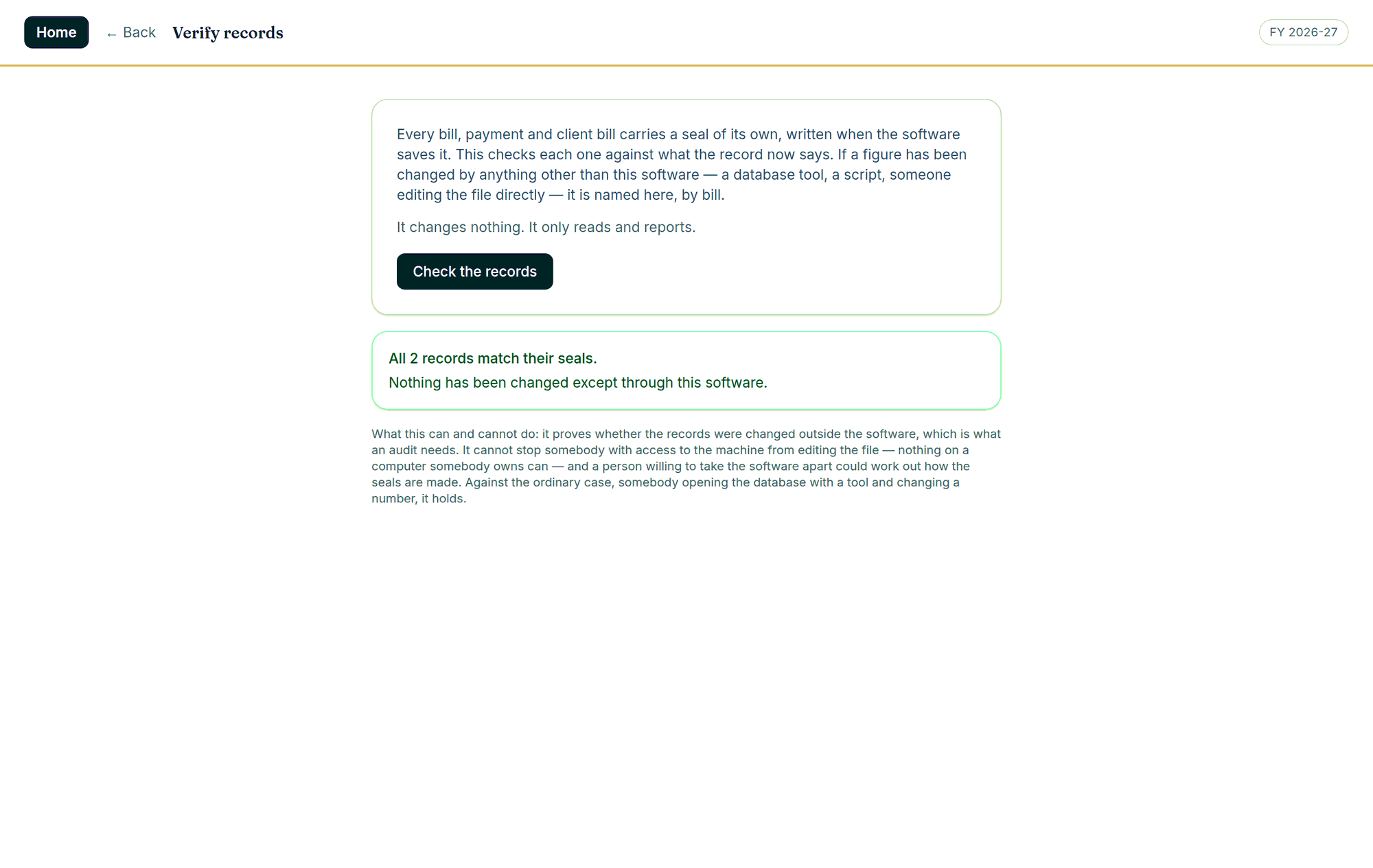
Every record carries its own seal
A seal is written when a bill, a payment or a patti is saved. Verify records reads every one back and checks it against what the record now says, and names anything that has been changed by something other than this software — a database tool, a script, somebody editing the file directly.
It changes nothing. It only reads and reports
Editing or deleting an issued GST document is warned, reasoned and logged
The changes log keeps who, when, why, and the record before and after
Deleted entries are kept seven days, then let go on their own
Backups on your terms, and a key you keep at home
Choose the folder — a pen drive or a second disk is the point — how often, and how many to keep. Older automatic backups are removed so the folder cannot fill the drive; the ones you take yourself are never touched. A backup that falls due while the machine is off is taken the next time it opens.
Every backup records the version it was made with, so a restore on a newer build migrates cleanly
The books are encrypted from the first bill; copying the file gets nobody anything
The recovery key is shown once at setup and can be looked up again while the machine lives
Keep the books on a second drive and a Windows reinstall cannot take them
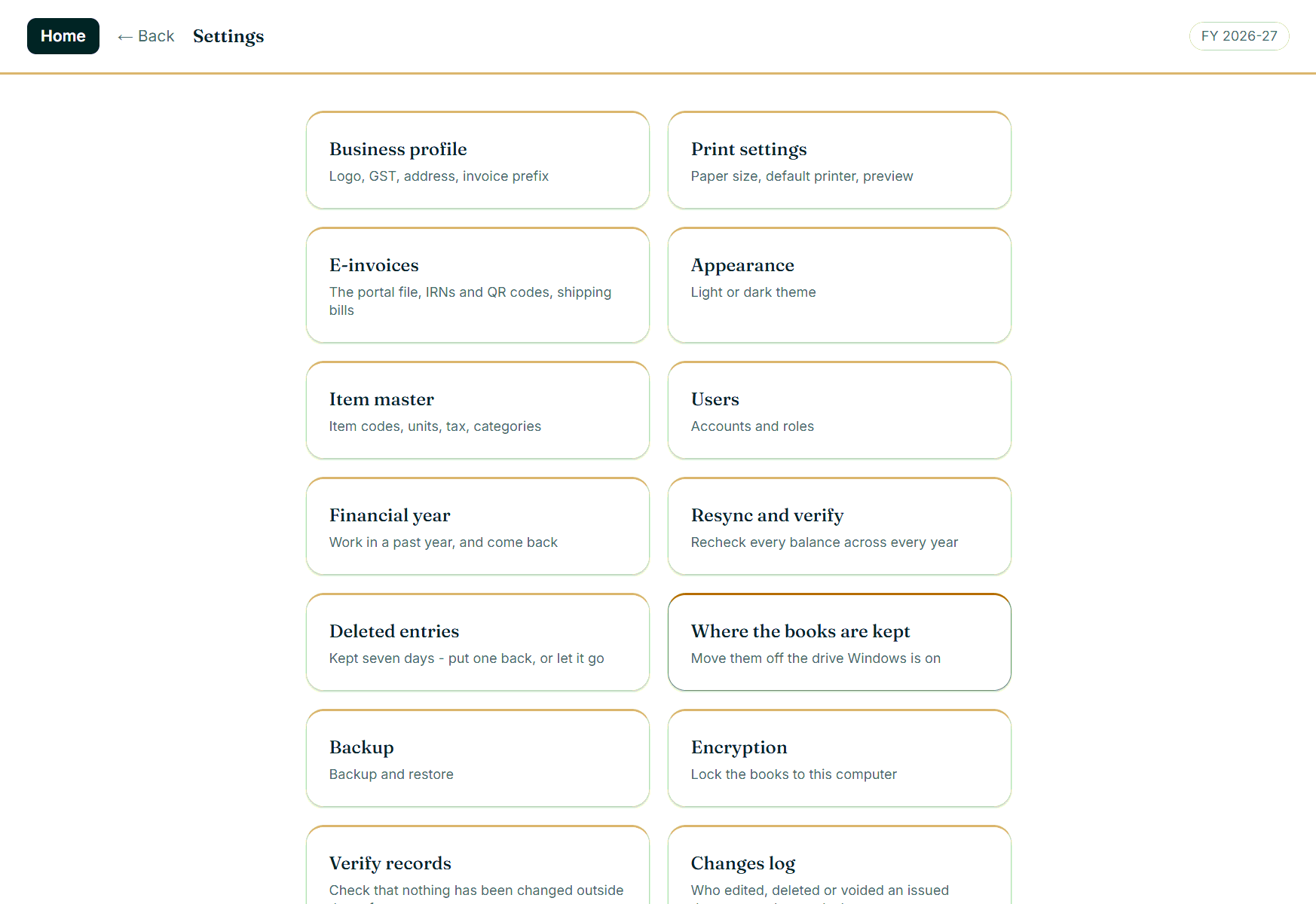
Everything the owner controls, in one place — and nothing here is reachable by a plain user.
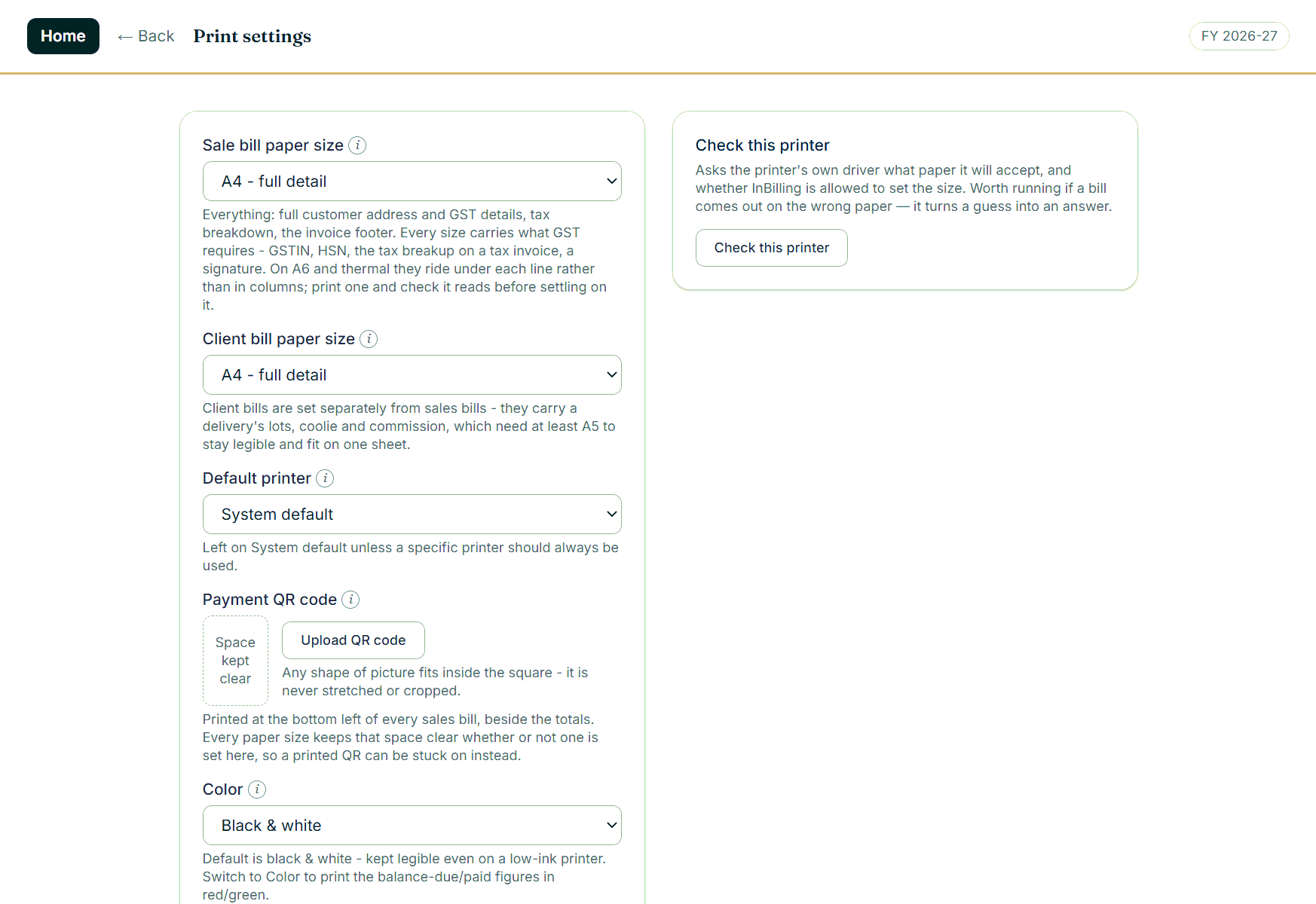
Printing is settings too: A4, A5, A6 or thermal, a default printer per document, and a printer report you can copy and send us.
Two people, two logins, one honest trail
The first account is the administrator. Every account after it is created by an administrator, with the administrator’s password given again to authorise it. A plain user can look things up, print and reprint — and cannot create or change a single record.
Every bill and payment records who created it and who last edited it
The screen locks itself after five minutes and gives the half-finished bill back
A test account bills and prints for real, watermarks everything TEST, and vanishes on sign-out
Locked out with no email on file? A one-time code, tied to that one installation, gets you back in
06 — Fit
It shows you only your half of the program
Two questions at setup — what kind of business this is, and whether it bills under GST — decide the entire map. A retail shop never meets a Letter of Undertaking. An exporter cannot do without one.
If the business is…
Edition
It gets
It never sees
Not registered under GST
Basic or Advanced
Data entry, printing, purchases and expenses, items, settings. Plain bills, no tax column.
Tax invoices, returns, portal files, the balance sheet, the purchase register.
A retail shop
Advanced Plus
Counter sales to walk-in and registered customers, credit notes, supplier bills with input credit, the GST report and the GSTR-1 file.
Exports, e-invoicing, e-way bills.
A wholesaler or trader
Advanced Plus
Everything a shop has, plus B2B bills, e-way bills for consignments of ₹50,000 and over, and e-invoicing once turnover crosses ₹5 crore.
Exports and SEZ supplies.
An exporter
Advanced Plus
Everything a trader has, plus the buyer's country, LUT or IGST, foreign currency, shipping bills and Table 6A.
—
A commission agent
Advanced / Advanced Plus
Everything, including the whole mandi side — inward, pattis, clients, commission.
—
You can change the answer later in Business profile. Turning GST billing on is a one-way step — the software says so and asks you to agree, because a consecutive series starts from that moment.
Read about it, or just run it.
Fifteen days, everything working, nothing to sign up for. Enter a real day’s bills and print one on your own printer — that is the only test that settles it.