Make a sale bill and print it
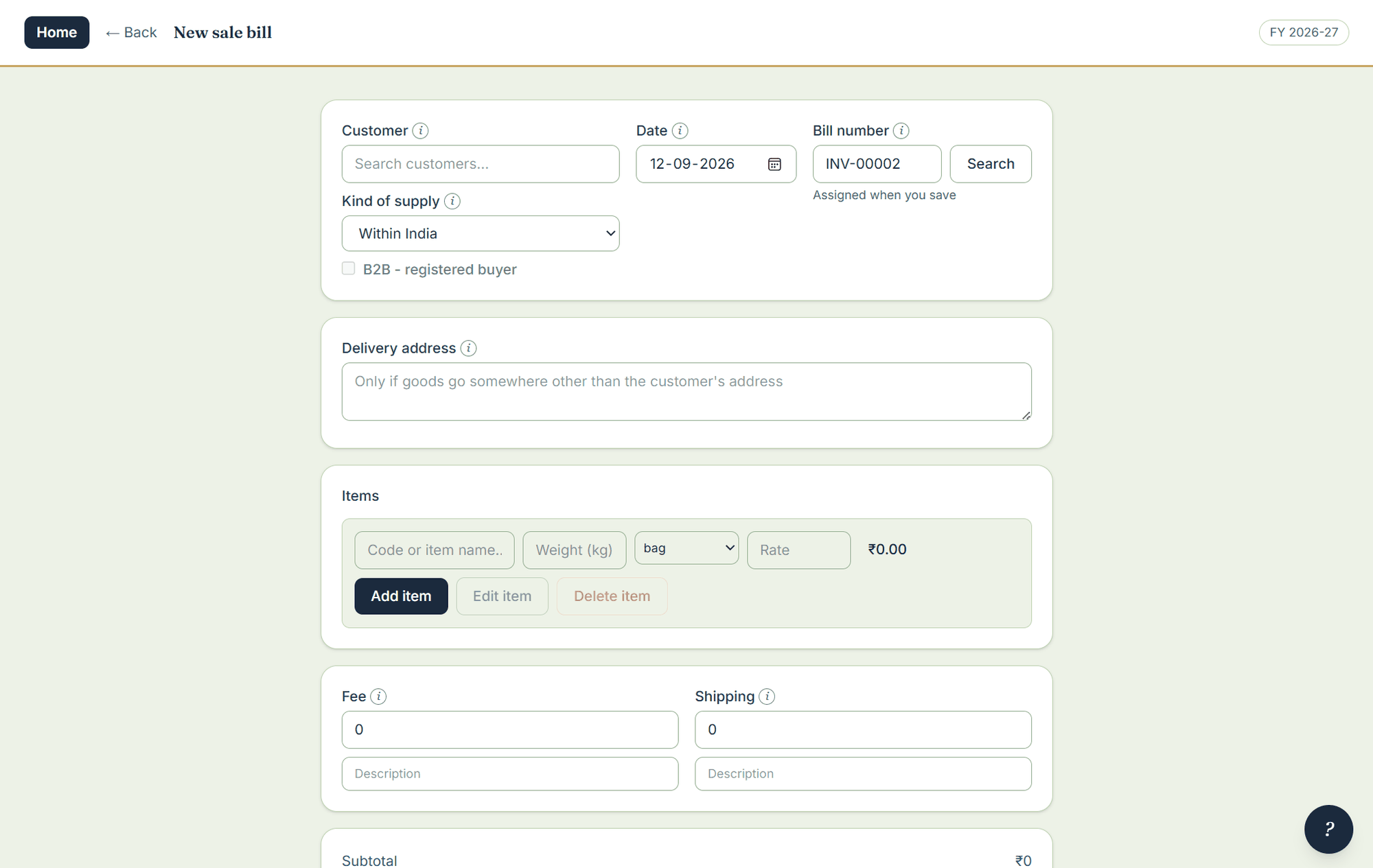
The bill screen is built around the keyboard: count, weight, rate, Add item — each one is Enter away from the next. The item’s price pre-fills the line, and both price and quantity stay editable, because the price you actually agreed is the one that has to be on the paper.
Where to click
- On the home screen open Sales, then New sale bill.
- Pick the customer. A new customer can be added from the same screen.
- Type the item code (or pick the item), then the count or the weight. The rate fills in from the item; change it on the line if today’s rate is different — the item master is not touched.
- Press Enter to add the line. Repeat for every item.
- Add any fees, freight, or a line or bill discount. The round-off is shown as its own row, never folded silently into an item.
- Save, then print straight to the default printer or save a PDF from the same screen.
What the printed bill carries
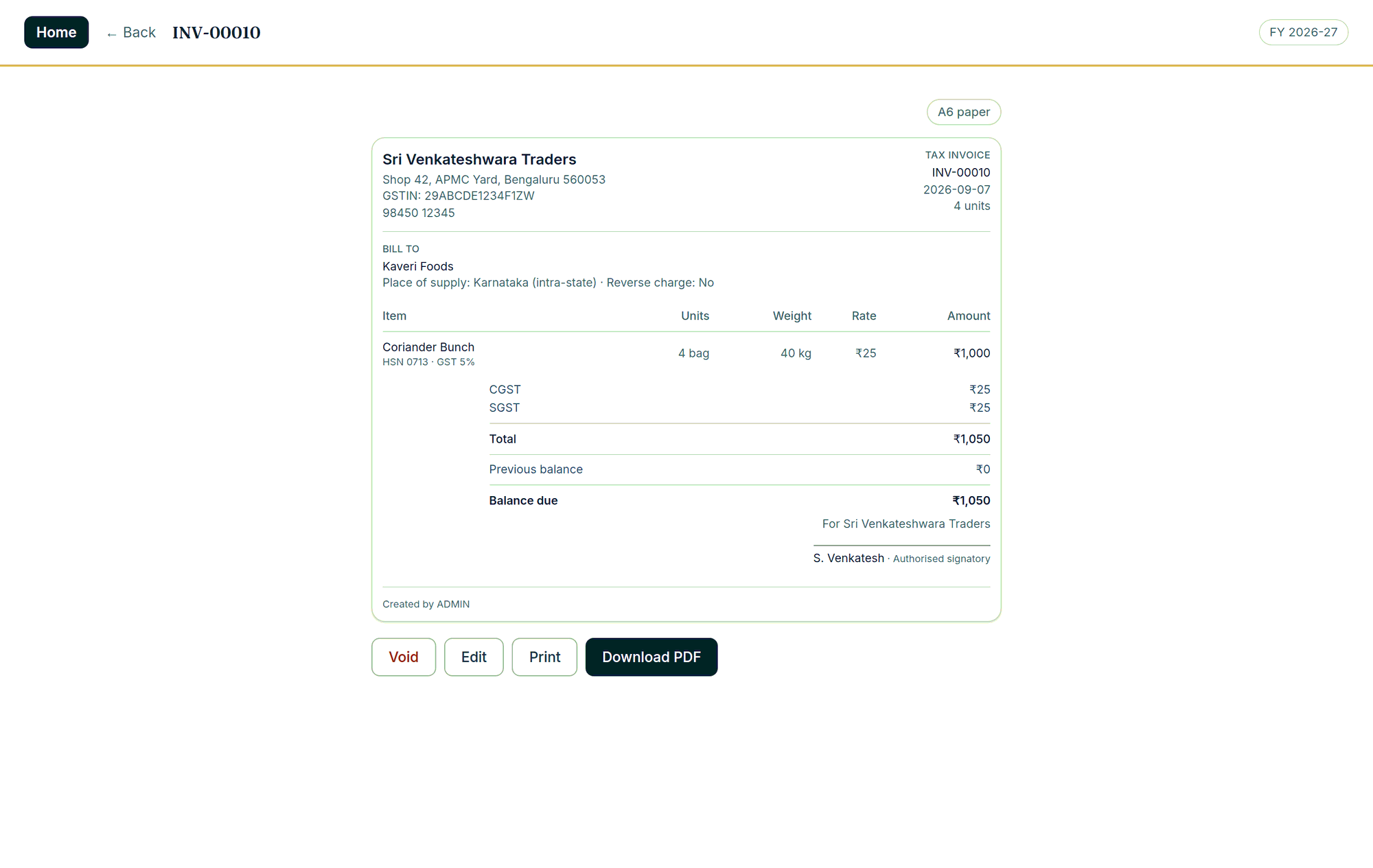
Tax Invoice or Bill of Supply is chosen per bill, automatically, from what is on it. CGST and SGST, or IGST, is decided by comparing the two states. The paper carries your GSTIN and the buyer’s, place of supply, HSN per line, the tax split, the reverse-charge indicator and a signature line, plus the customer’s previous balance and balance due. It prints the same on A4, A5, A6 and thermal.
Adding an item first
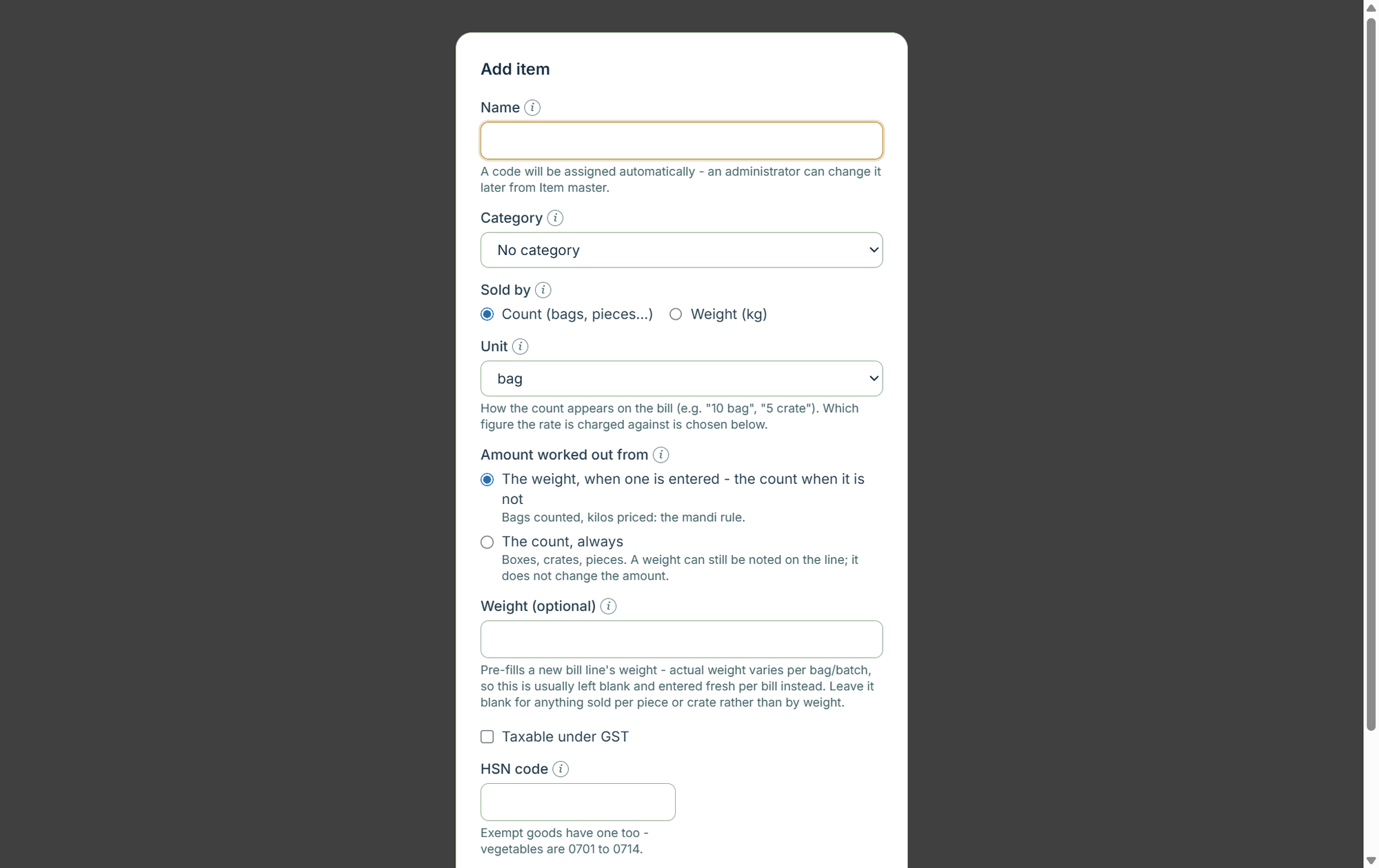
If the item does not exist yet, add it from Items. An item says whether it is sold by count or by weight, and what its amount is worked out from; it also carries the unit, price, HSN, GST rate, barcode and minimum stock.
Related
Numbering: bills use a three-letter prefix of your own and a five-digit sequence, consecutive and unique within the financial year, resetting at each rollover.