InBilling Day One — the six screens a shop uses every day
InBilling Basic · billing without GST
Everything a shop does in a day, in six screens
You do not need to learn InBilling. You need to learn six things — list an item, sell, collect, check, reprint, reprice. This page walks one real shop through one real day on the real screens, filling each one in as it explains it, and the money adds up as you go.
The six screens, and where each one lives
- How do I add an item?
- Items
- How do I make a bill?
- Data entry › New sale bill
- How do I record a payment?
- Data entry › Payment received
- How do I see who owes me money?
- Printing › Reports › Ageing balances
- How do I reprint an old bill?
- Printing › Sale bills
The shop we will use
Every number on this page belongs to this one day. Follow along on your own screen with your own names.
You are
Sri Lakshmi Vegetables
Shop 12, Chickpet, Bengaluru
Not registered under GST — so your bills print with no tax column.
Your customer today
Anna Kitchen
A mess two streets away. Takes vegetables every morning, settles most of it by evening, and always argues about the tomato rate.
Every part of the program is one tile away. Nothing is buried.
The ? circle at the bottom right of every screen — or F1 from anywhere — takes a question in your own words and opens the right screen.
No internet to install, to run, or to activate. Your books stay on your computer.
Setting up · once per item
How do I add an item?
Open Items on the home screen and add the product. You cannot put something on a bill until it exists here — so this is the very first thing you do.
You only do this once per product. Tomato, onion, beans, potato — add them the day you start, and after that you just pick them while billing. A code is assigned automatically; you never have to invent one.

- Open Items on the home screen — that is the Item master — and press Add item. You can also add one from the bill screen while billing.
- Type the Name — “Tomato – local”. Then choose how it is Sold by: Weight (kg) for anything put on the scale, Count for bags, crates and pieces.
- Put today’s Price in if you want the bill to fill it in for you — you can still change it on any line. Press Save item. That is the item made.
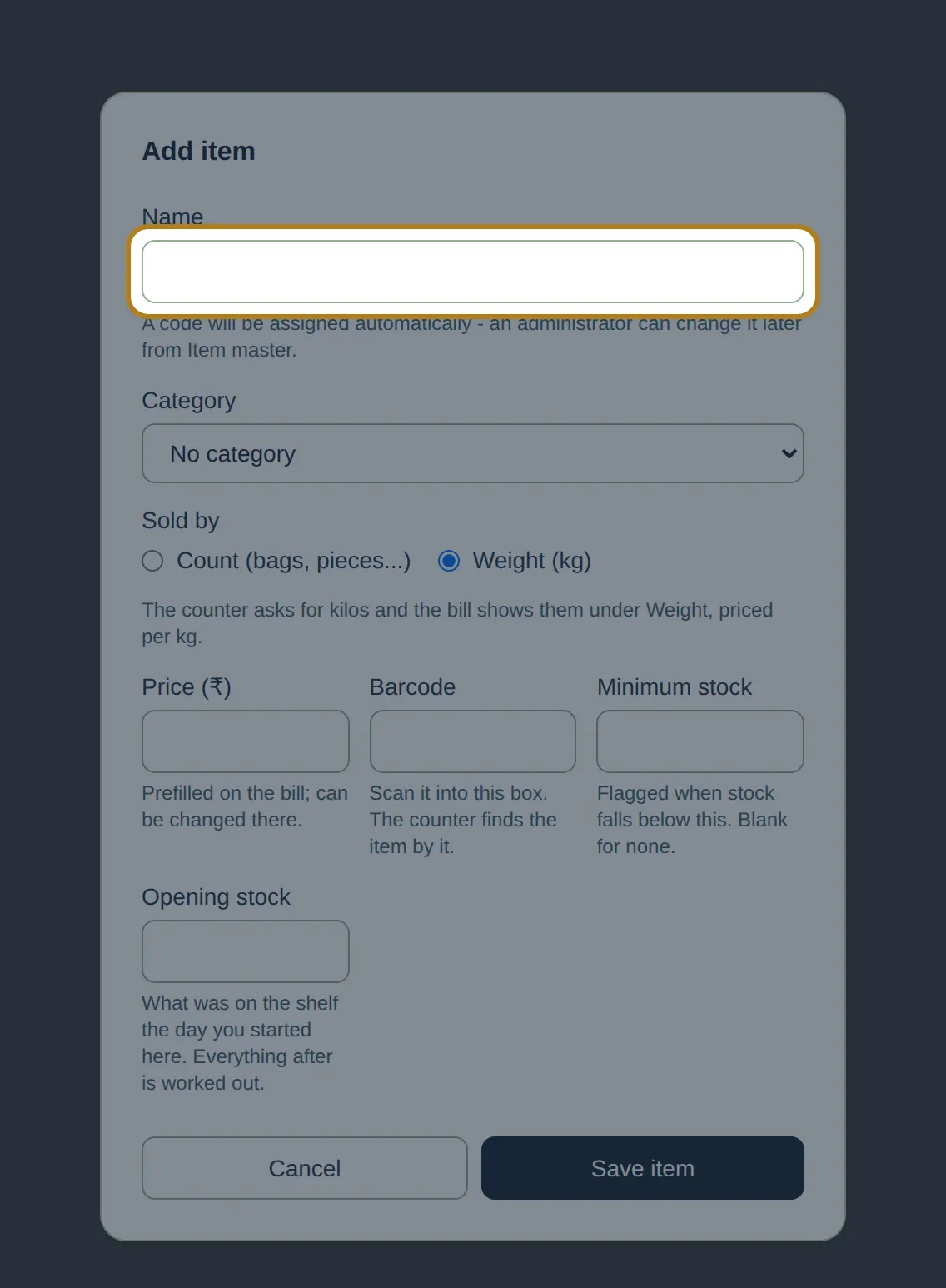
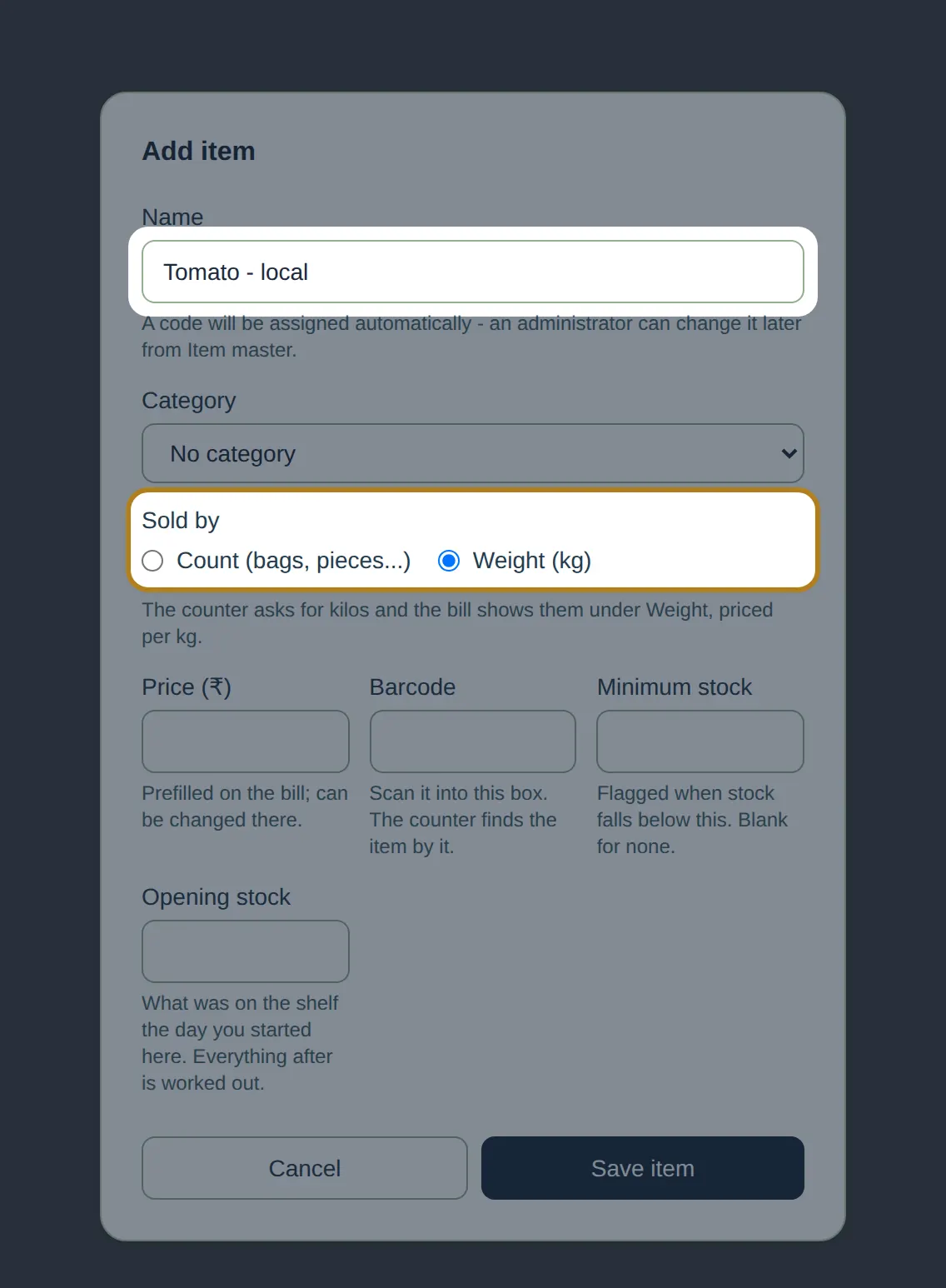

The Add item dialog on a shop book. Barcode, minimum stock and opening stock are there for shops that keep stock — leave them empty and nothing breaks.
Morning · 6:40 am
How do I make a bill?
Open Data entry › New sale bill, pick the customer, type the item with its weight and today’s rate, add any Fee or Shipping, then save and print. The rate you type on a line applies to that bill only.
Anna Kitchen’s boy is at the counter with 51 kg of tomato. The bill screen is built around the keyboard — count, weight, rate, add item, each one an Enter away from the next. Watch the screen fill in as the steps go by.
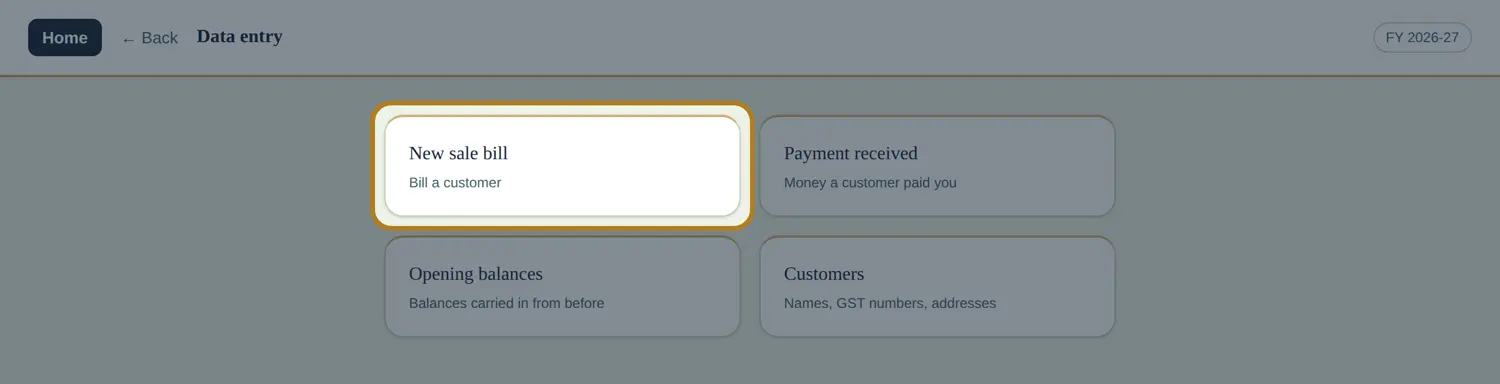
- On the home screen open Data entry, then New sale bill.
- Pick the customer — Anna Kitchen. A new customer can be added right here.
- Type the item and the weight. The rate fills in from the item — change it to today’s ₹28.50.
- Press Enter to add the line. Repeat for every item.
- Put the ₹120 for the tempo in Fee (Shipping is the same idea). Round off appears on its own row.
- Save. Bill number reads “Assigned when you save” until then. Print, or save a PDF.
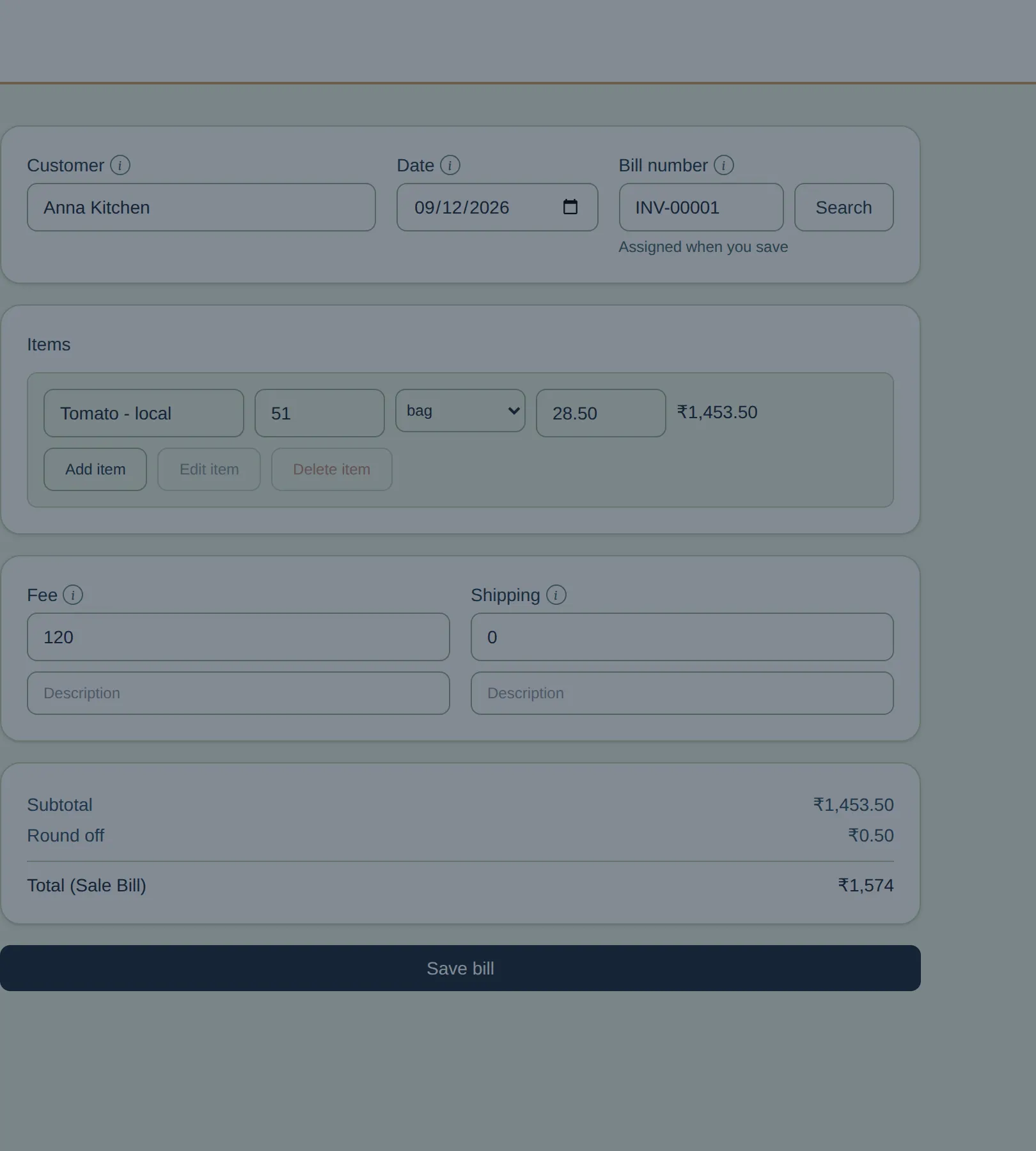
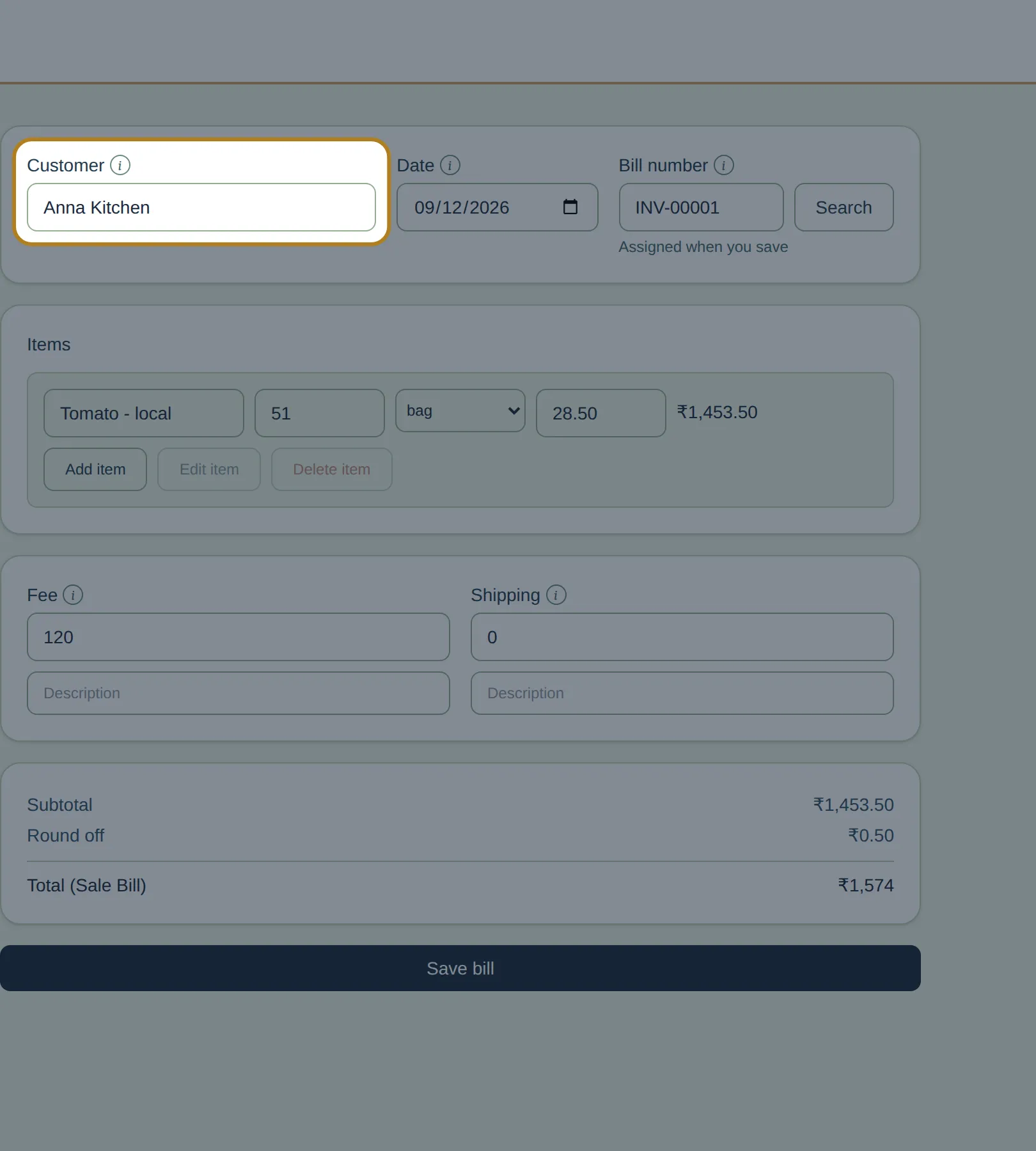
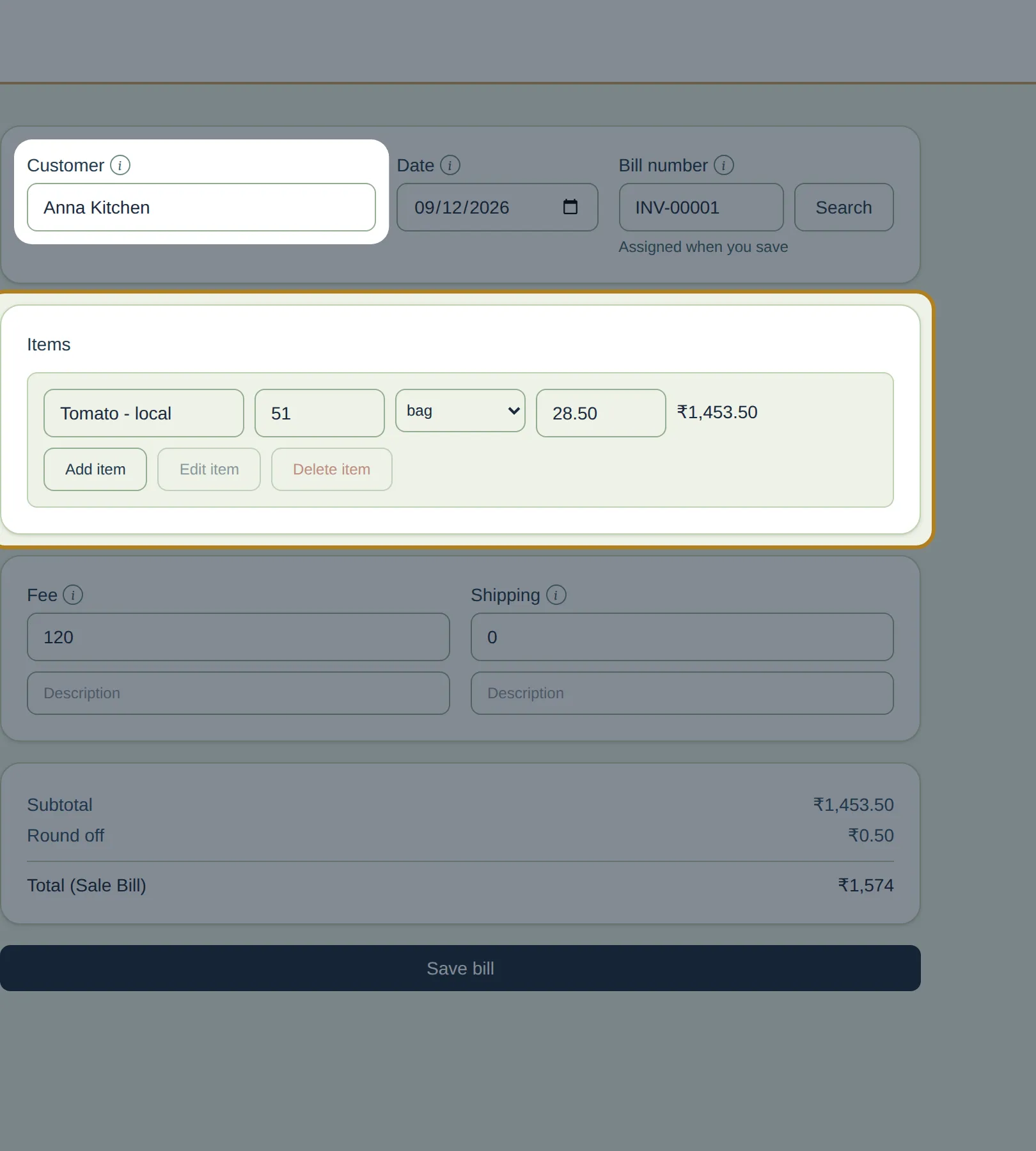
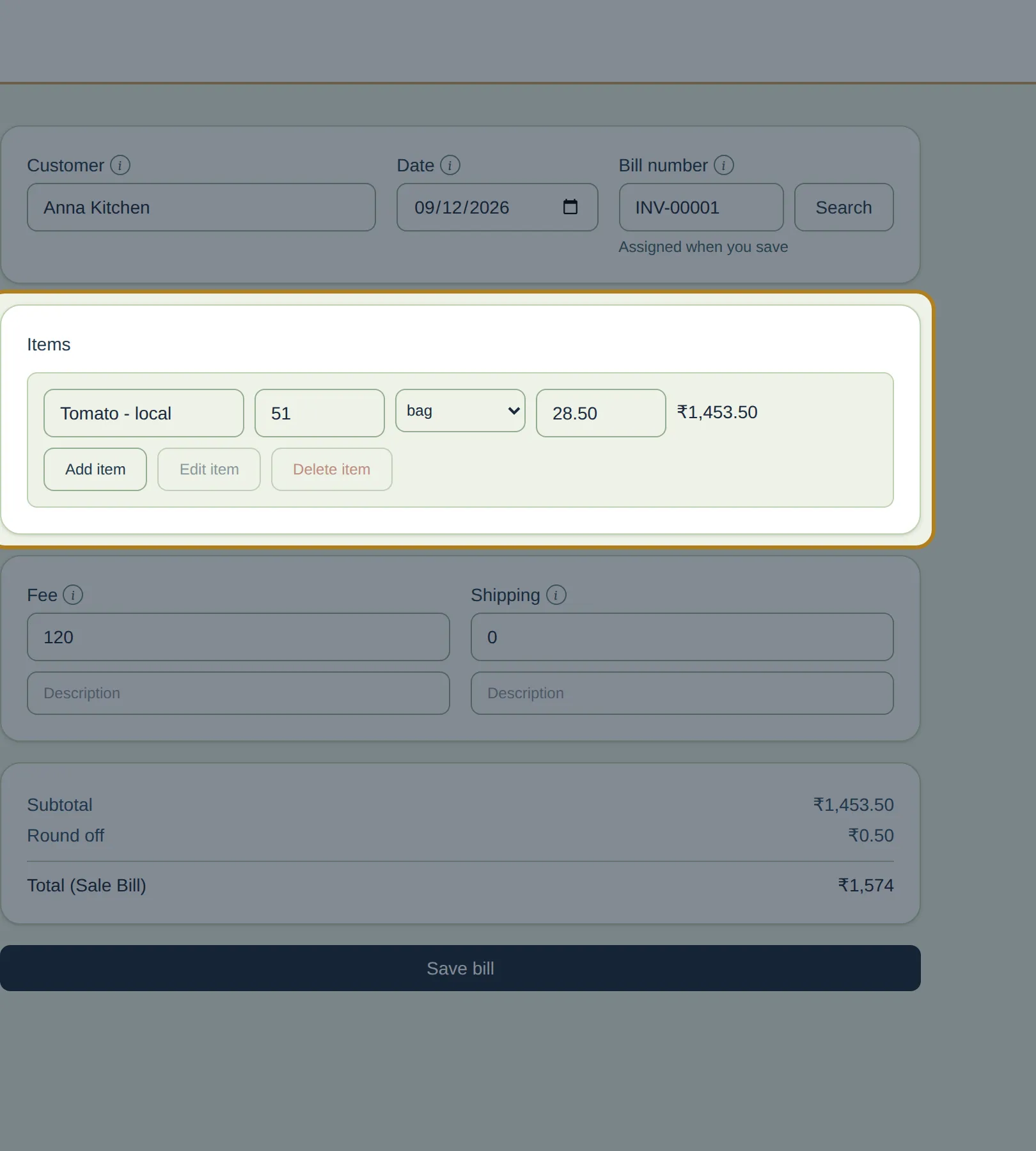
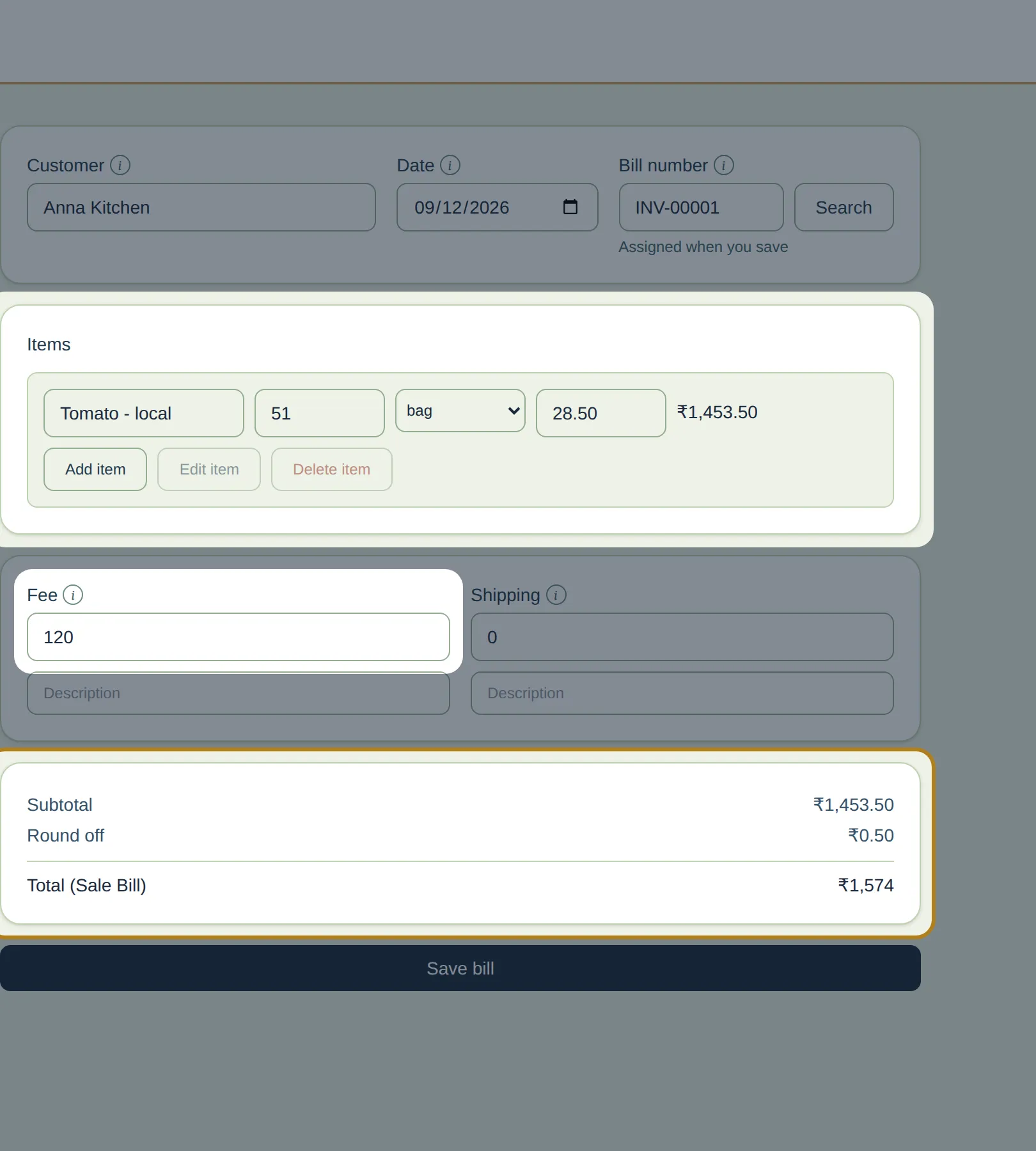
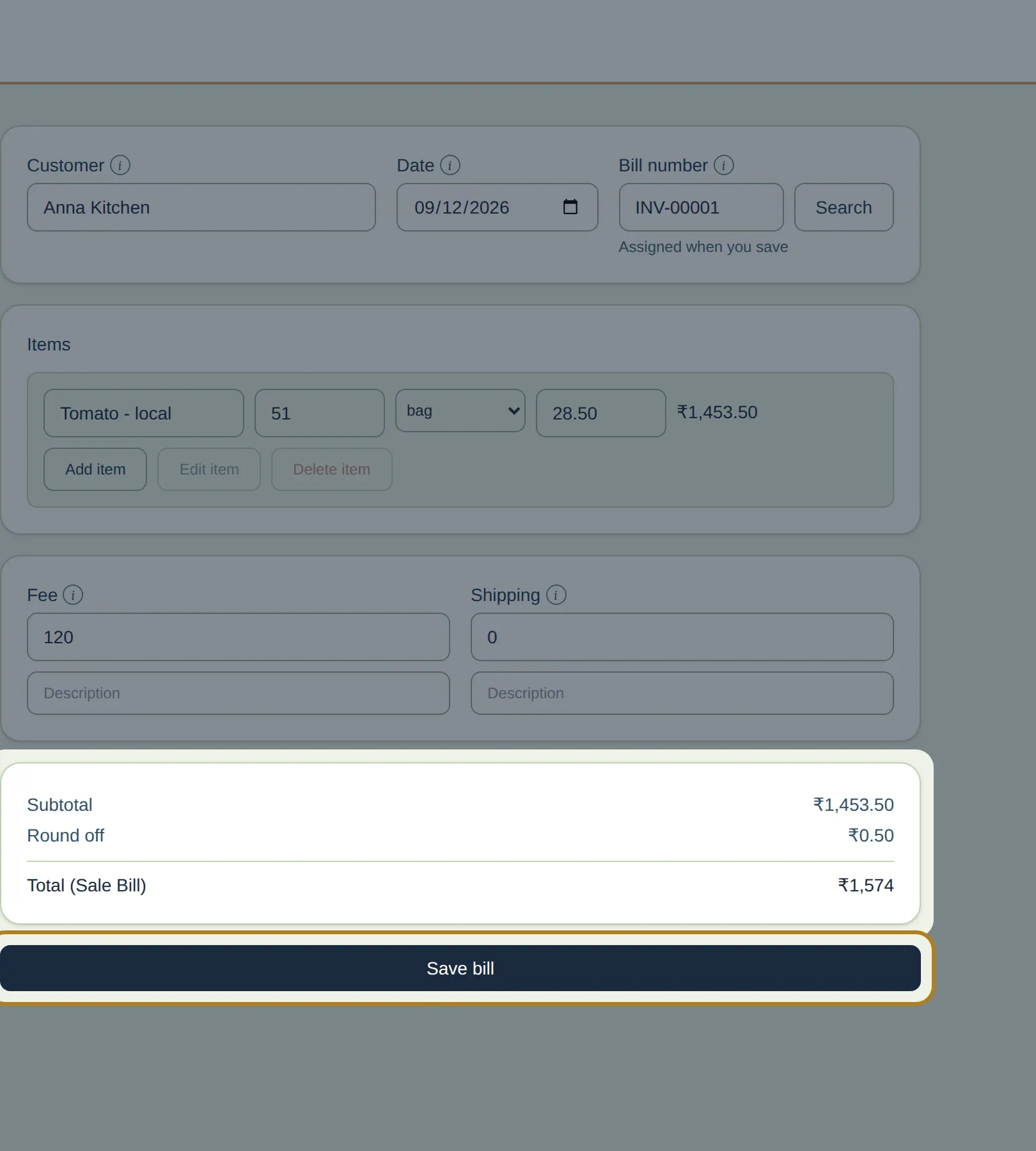
The real InBilling screen, with our worked example typed into it. Each step lights up the part it is talking about. Bill number says Assigned when you save until you save it.
| Item | Weight (kg) | Rate ₹ | Amount ₹ |
|---|---|---|---|
| Tomato — local | |||
| Subtotal | |||
| Fee | |||
| Round off | |||
| Total (Sale Bill) | |||
Afternoon · 3:15 pm
How do I record a payment?
Open Payment received under data entry, pick the customer, enter the amount and the mode, and add any discount you allowed. Both the amount and the discount come off the balance.
Anna Kitchen sends ₹1,000 by UPI and asks for ₹24 off because a few kilos were soft. There is no separate credit note to raise — both go on this one screen.
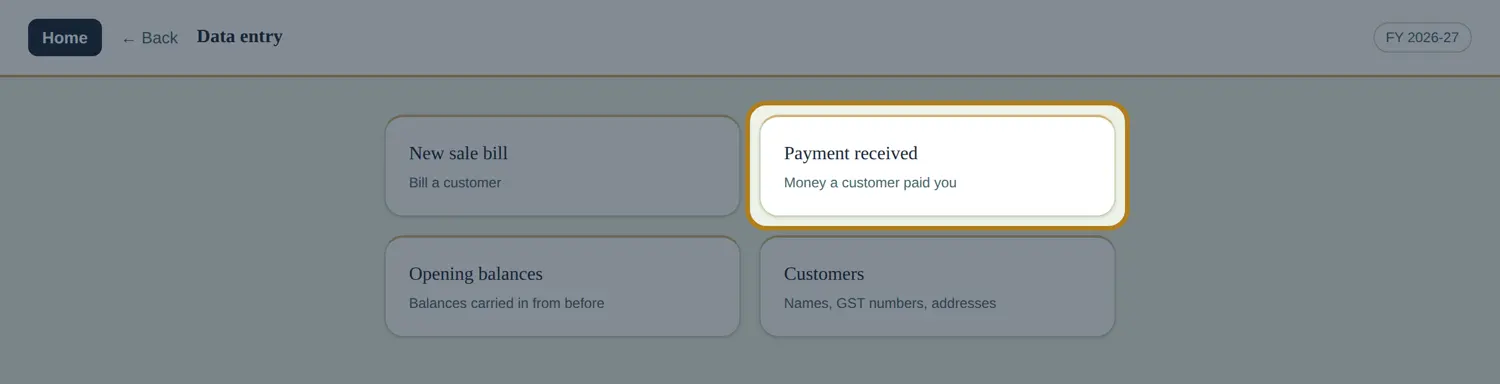
- Open Payment received under data entry.
- Pick the customer, the date and the amount — ₹1,000.
- Choose the mode: cash, UPI, bank transfer, cheque, or one you add yourself.
- Put the ₹24 in discount or credit. It posts against the balance too.
- Save. The payment gets its own receipt number — print it now or reprint it later.
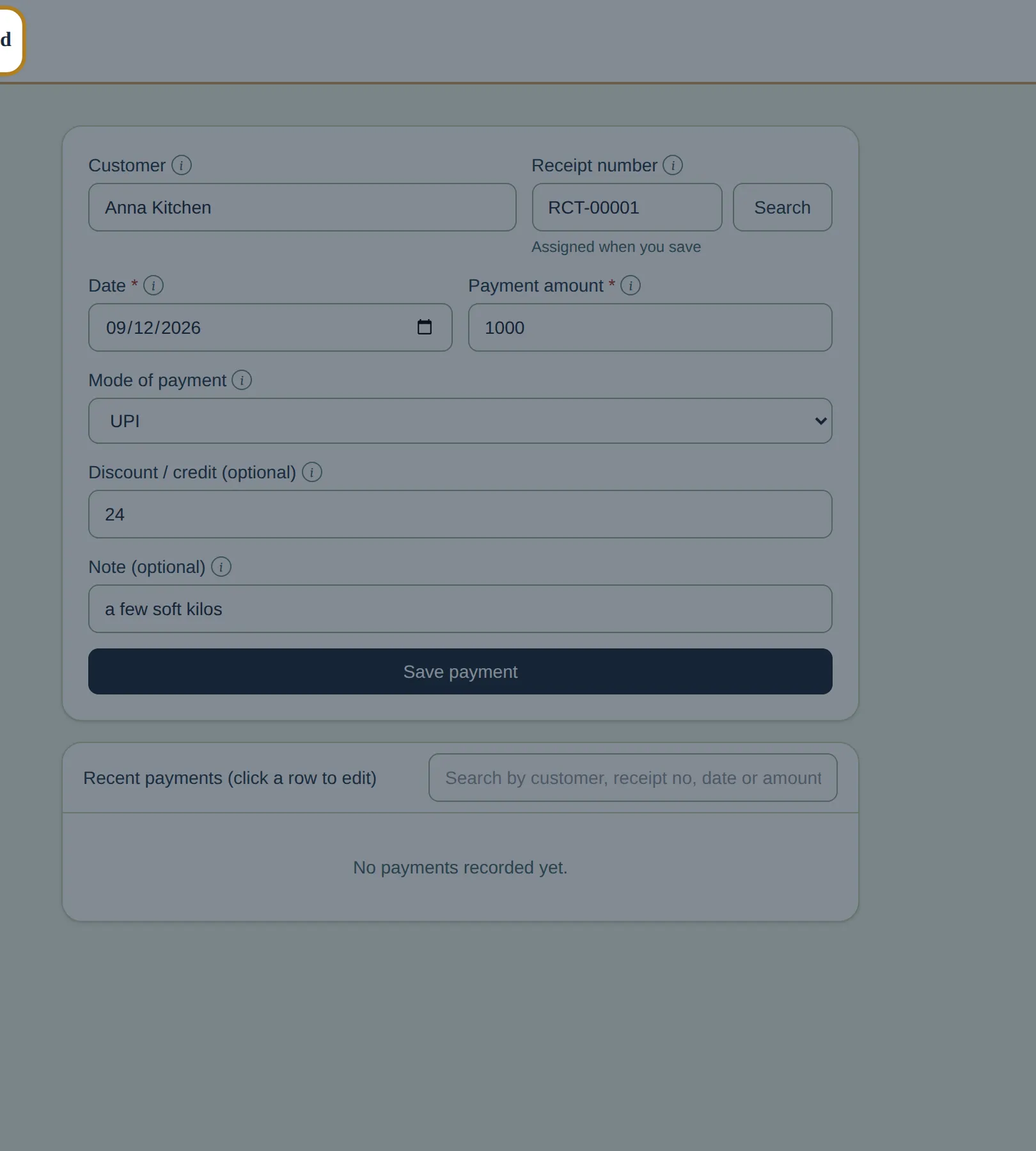
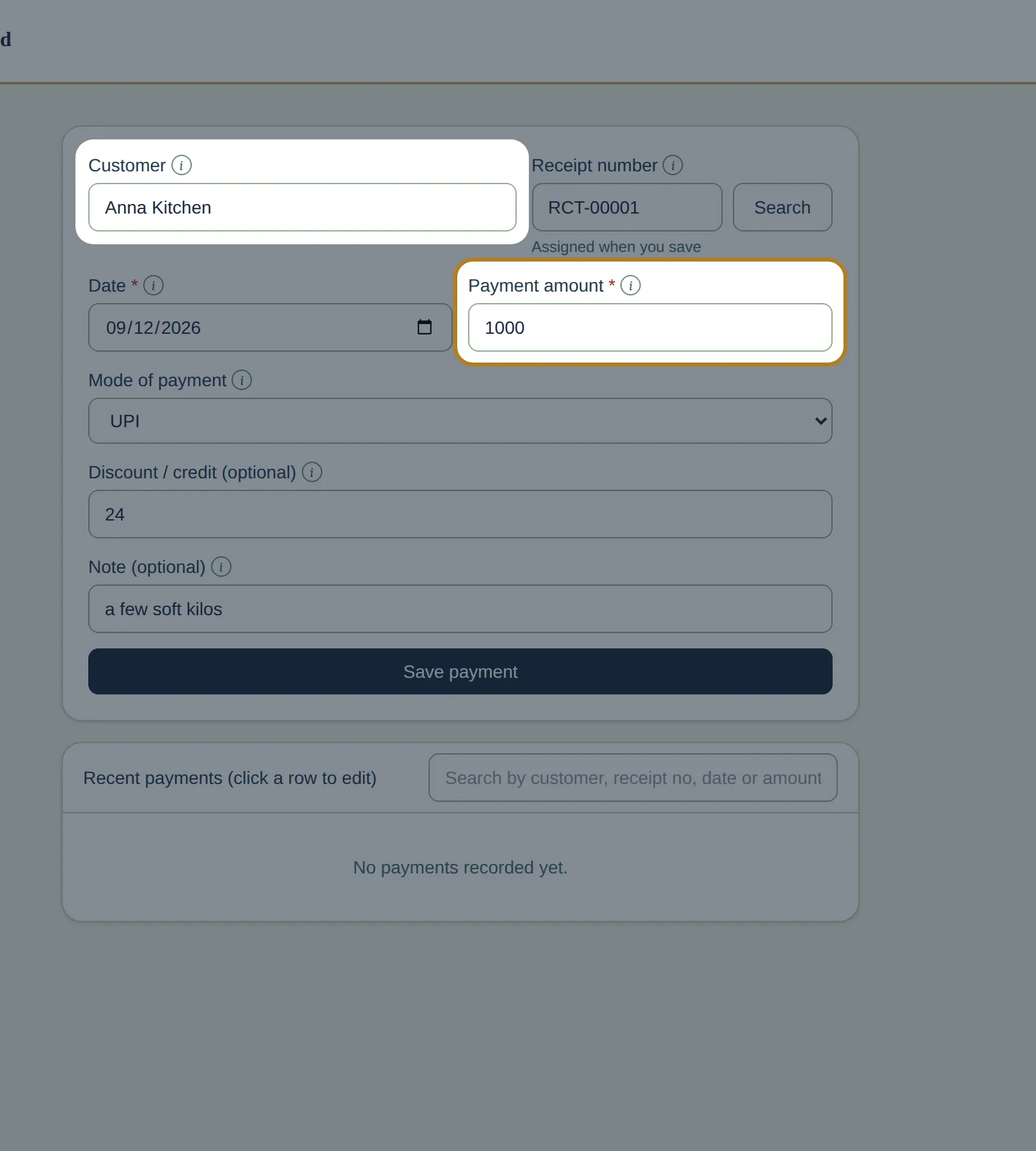
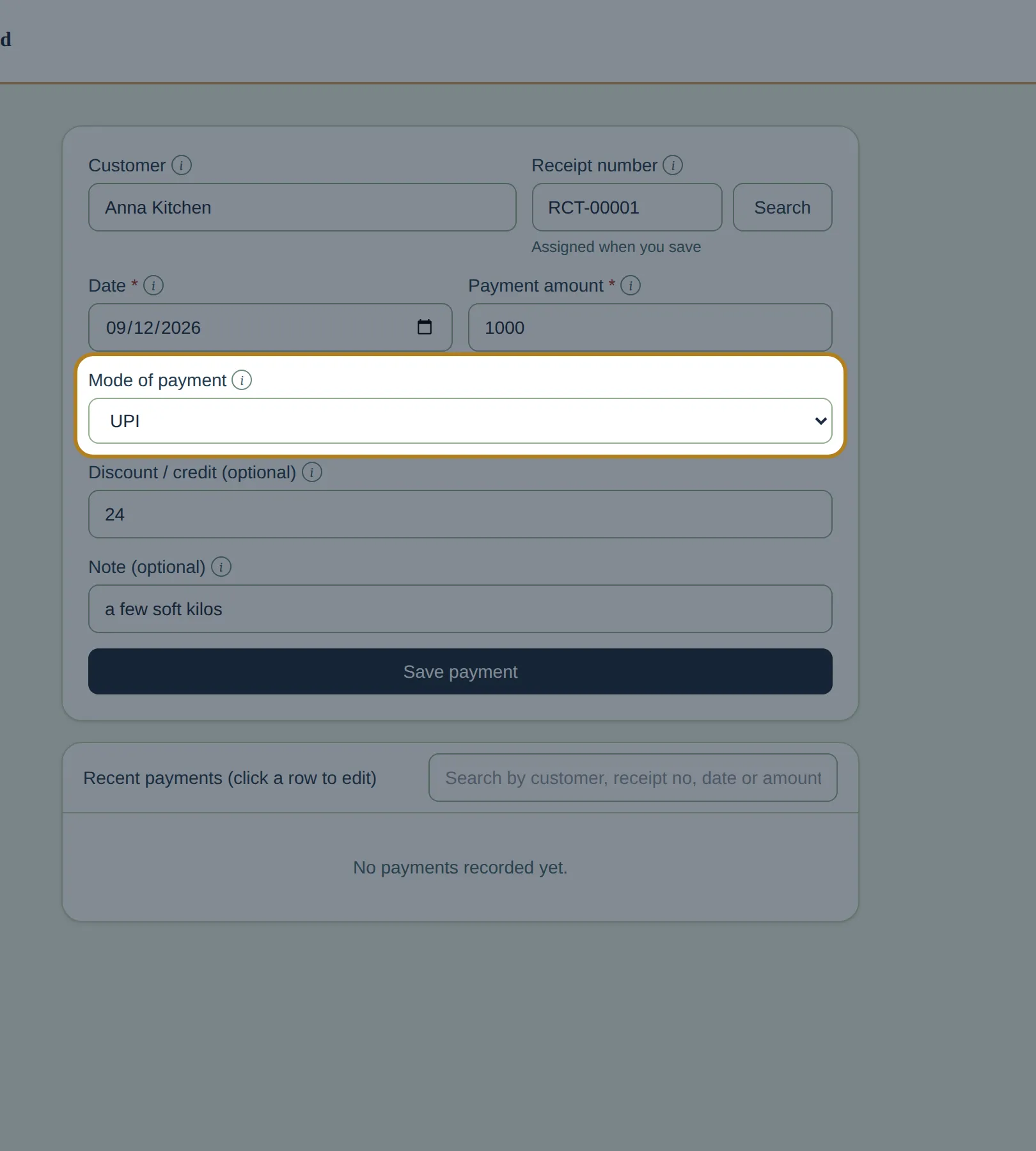
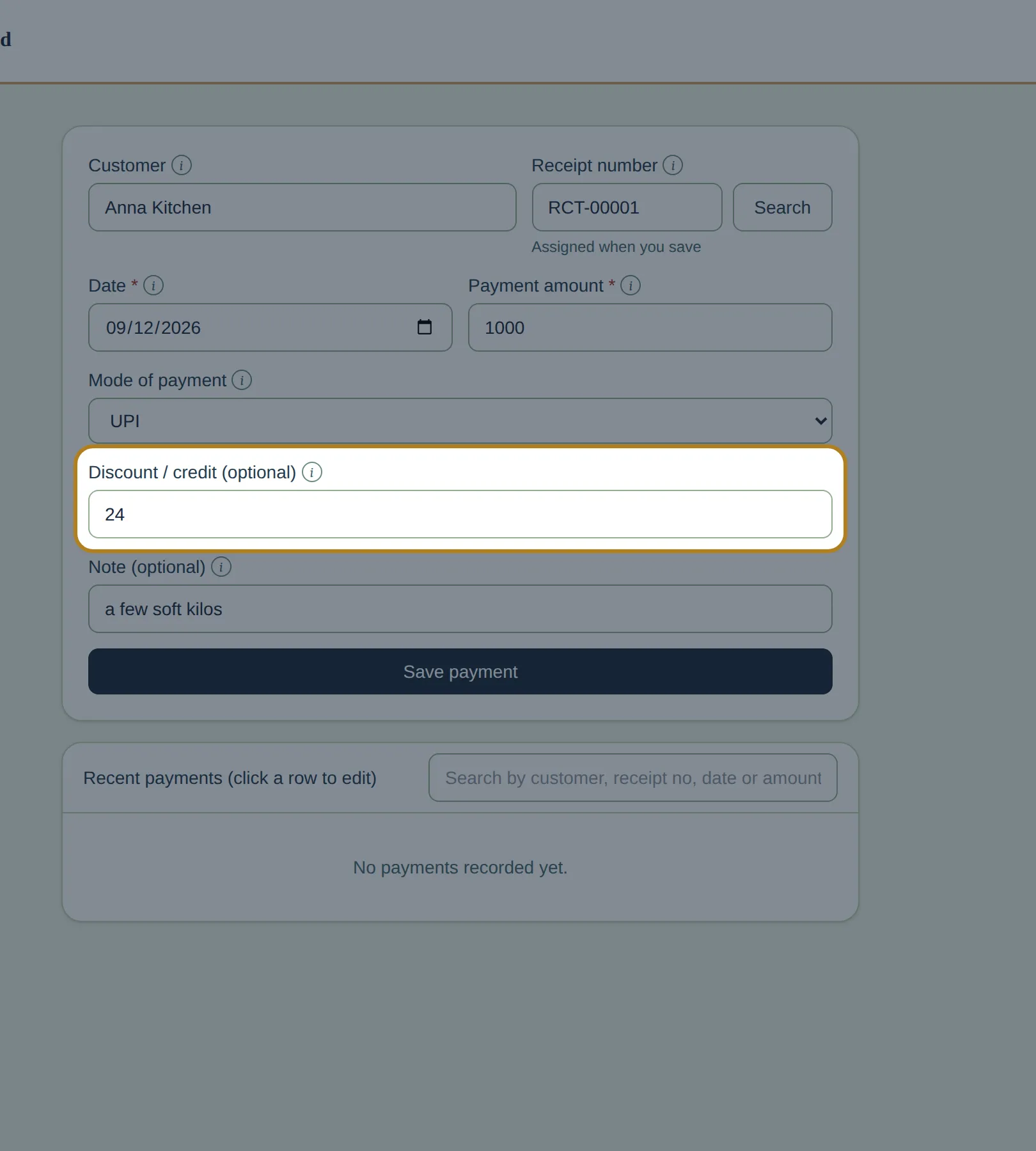
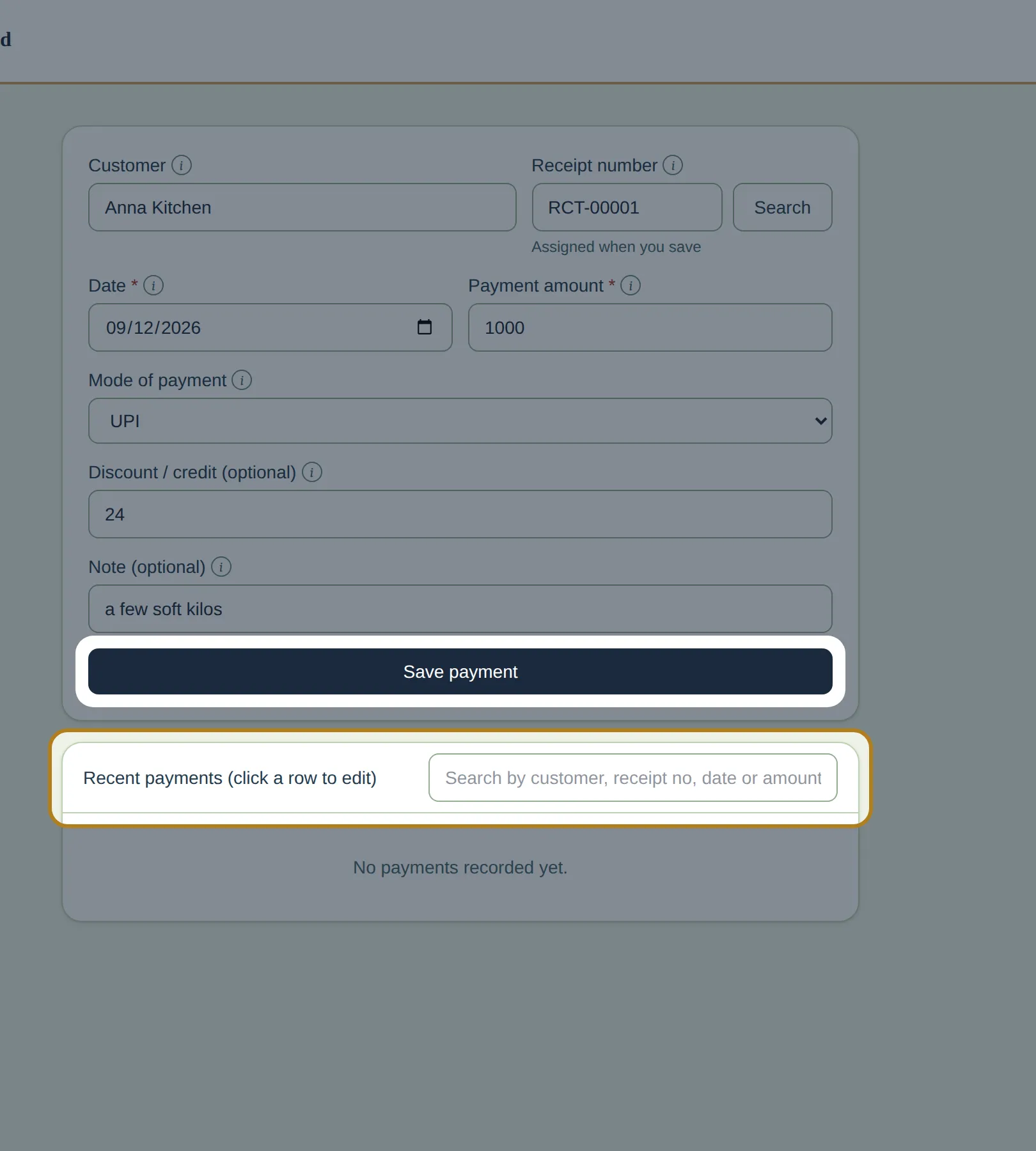
The real InBilling screen, with our worked example typed into it. Each step lights up the part it is talking about. Recent payments sit under the form, newest first — click a row to correct yesterday’s entry without going looking for it. This capture is from a fresh book, so that list is still empty.
Evening · 7:00 pm
How do I see who owes me money?
For one customer, open their ledger — on a book that does not bill under GST the ledgers sit under Printing. For everybody at once, open Printing › Reports › Ageing balances.
Two questions, two screens. Learn which is which and you will stop hunting.
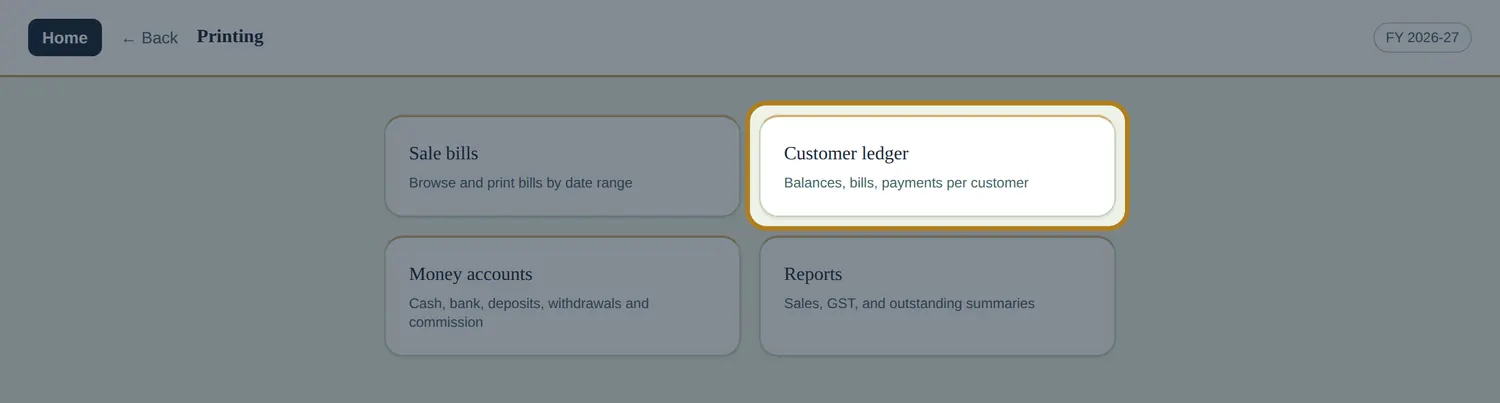
- One customer. Open their ledger, choose the dates, print it or save a PDF. Bills left, payments right, balance at the bottom.
- Everybody. Open Printing › Reports. Business summary, Purchase register, Balance sheet, Ageing balances, Running balances, Daily report, Money in / Money out, Profit and the rest — each takes a date range, prints, and exports to Excel.
- Today’s takings — Daily report: one day, what was sold and what came in.
- The dues — Ageing balances: who owes, and who has not traded with you in ninety days.
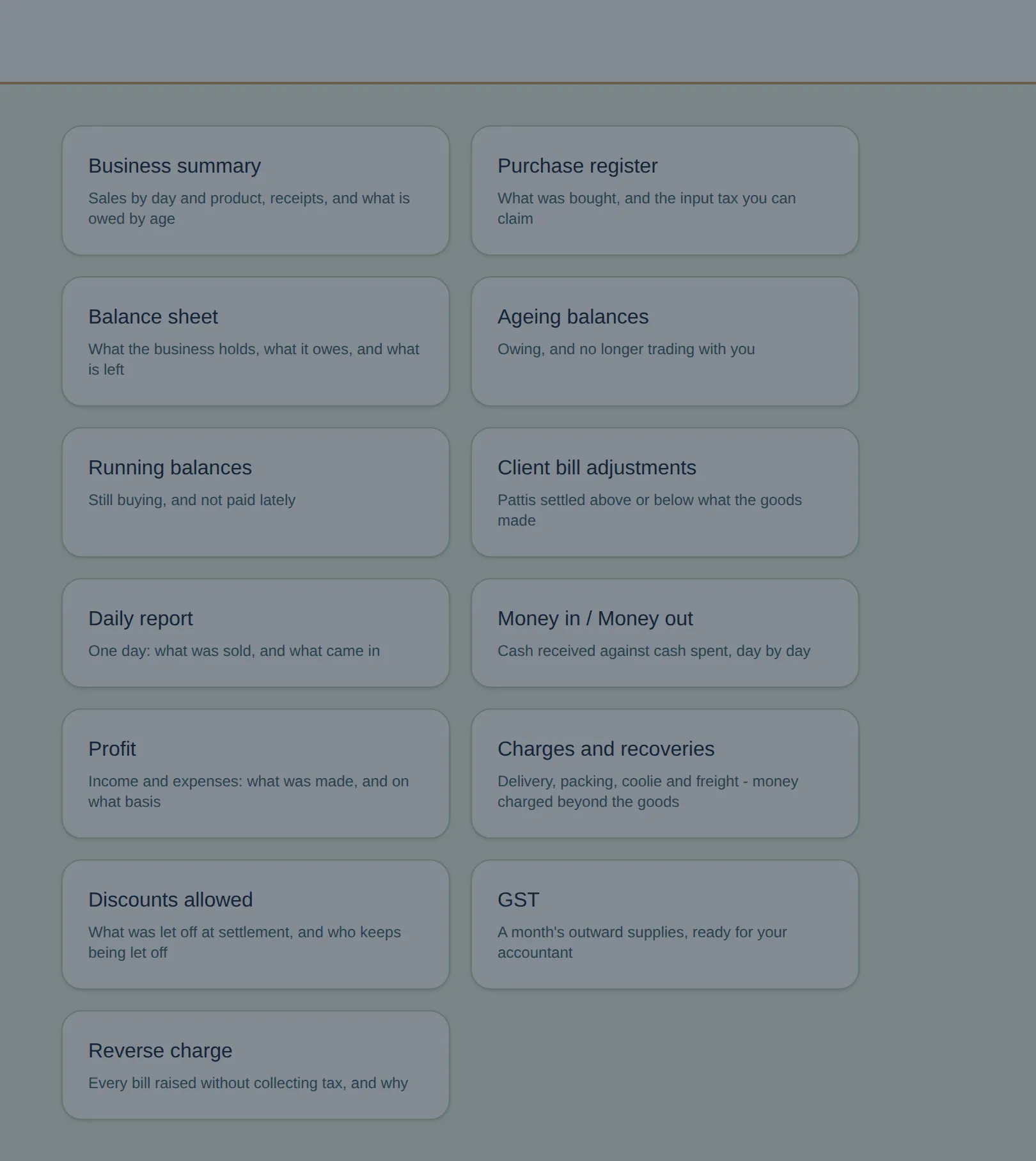
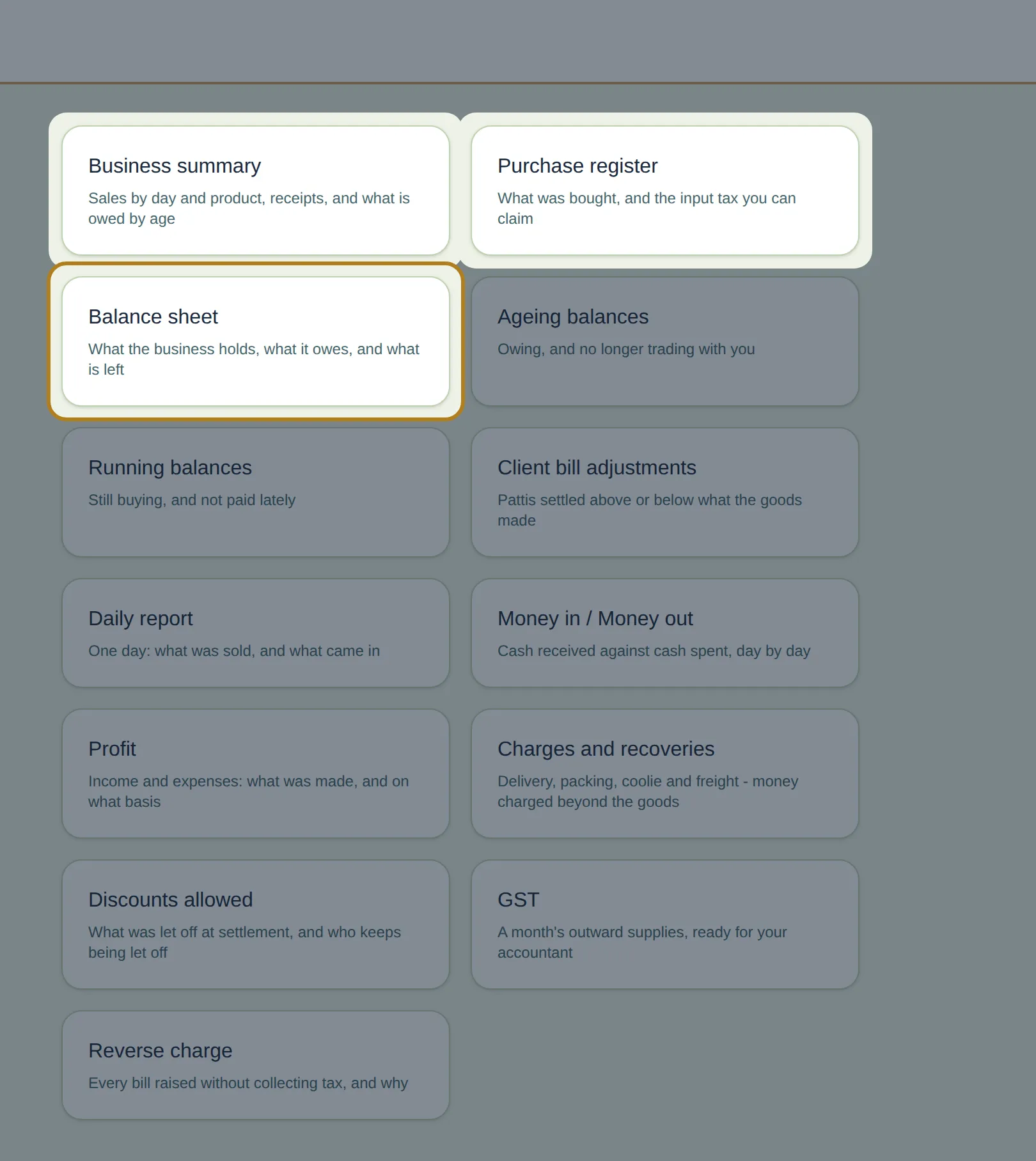
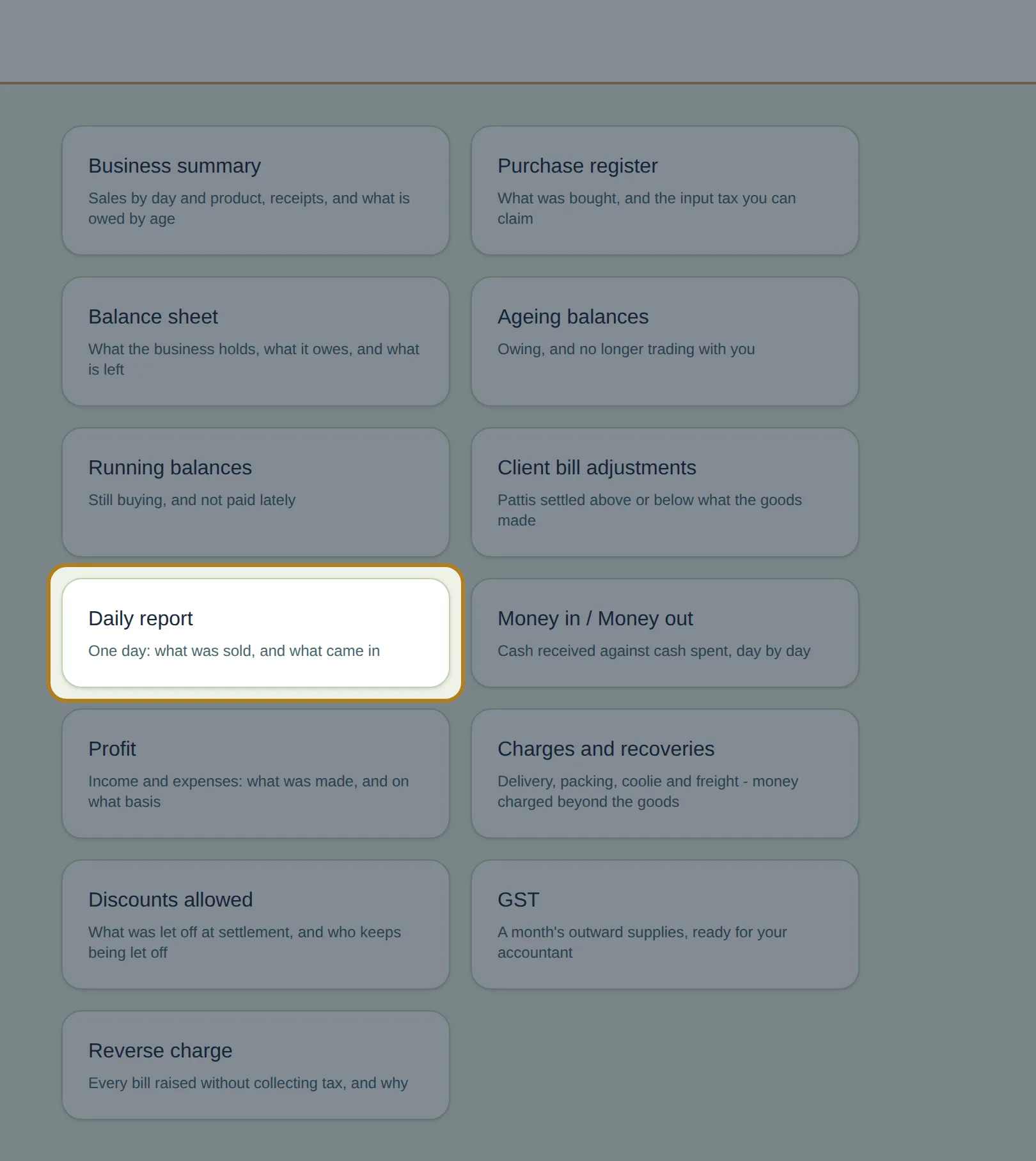
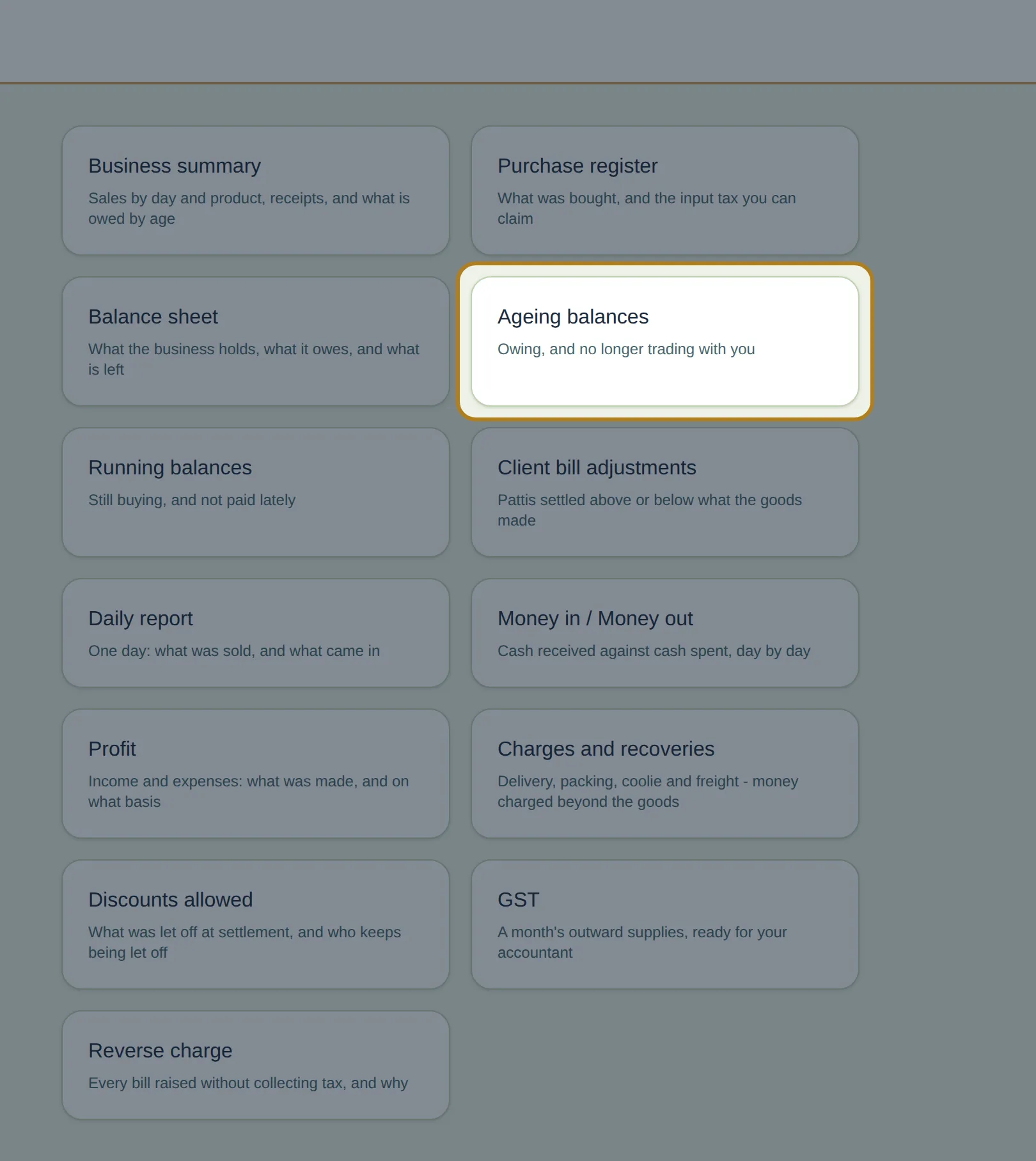
The real Reports screen. Reports a business does not need are never shown to it — a shop that does not bill under GST sees a shorter list than this one.
Any time · “I lost that bill”
How do I reprint an old bill?
Open Printing › Sale bills, pick the date range, tick the bills you want, and press View. Each bill then has its own Print and Download PDF.
Anna Kitchen’s accountant has mislaid every bill from the first week of September. You do not need to find them one at a time.
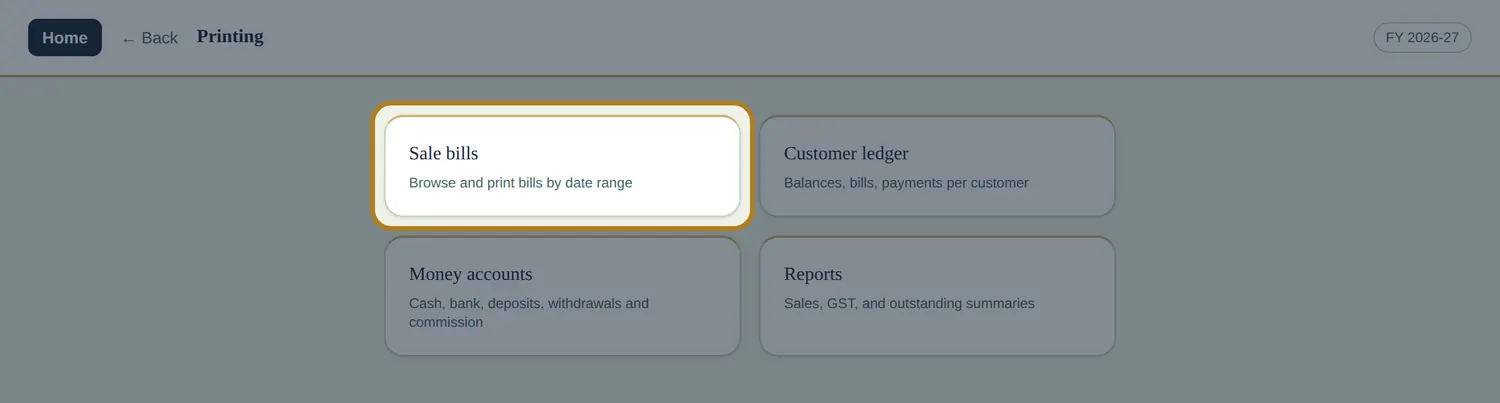
- Open Printing › Sale bills.
- Pick the date range — 1 to 7 September.
- Tick the bills you want. Tick the header box to take all of them.
- Press View. Each bill opens with Print and Download PDF on it; Page Down moves to the next ticked bill.
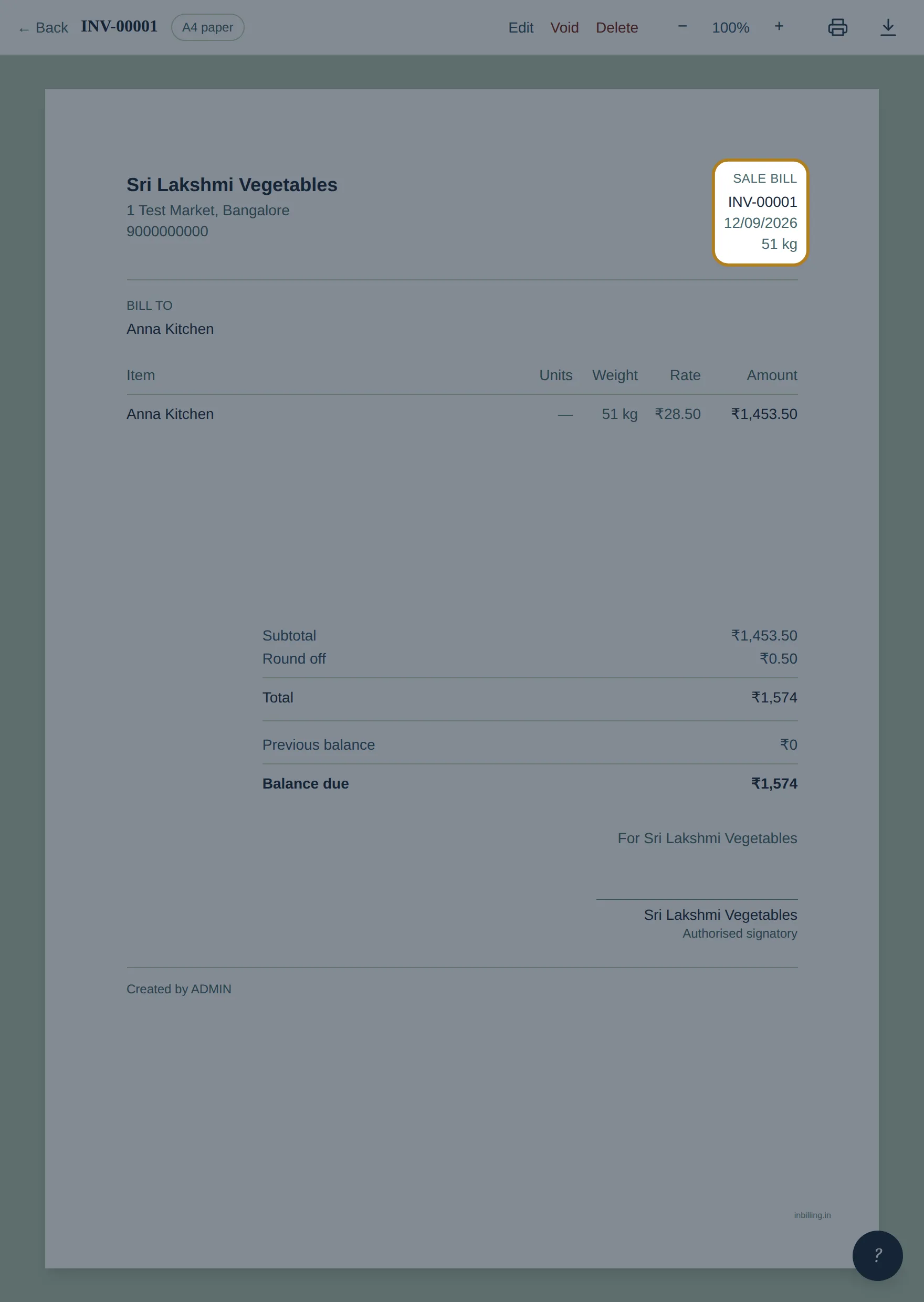
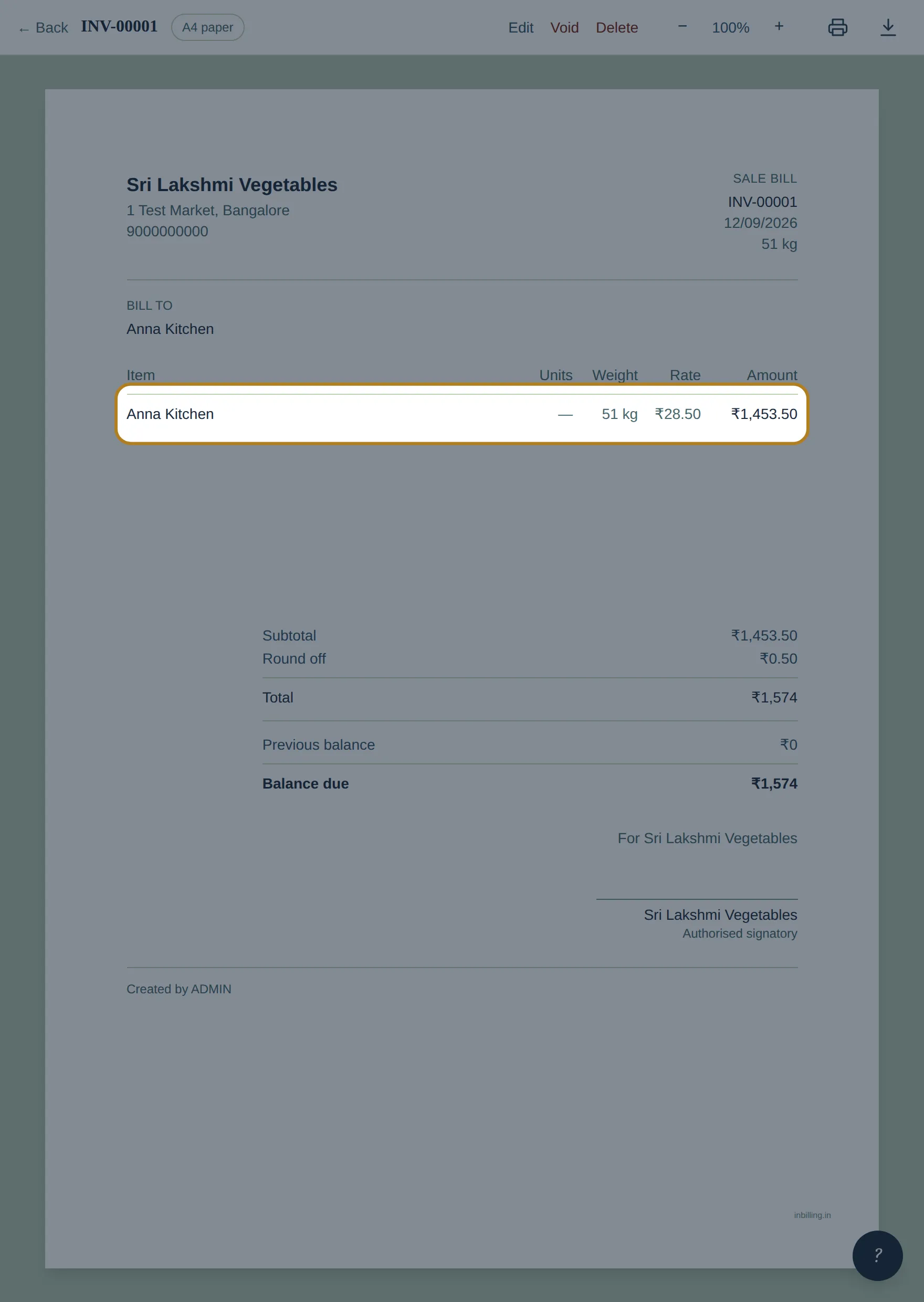
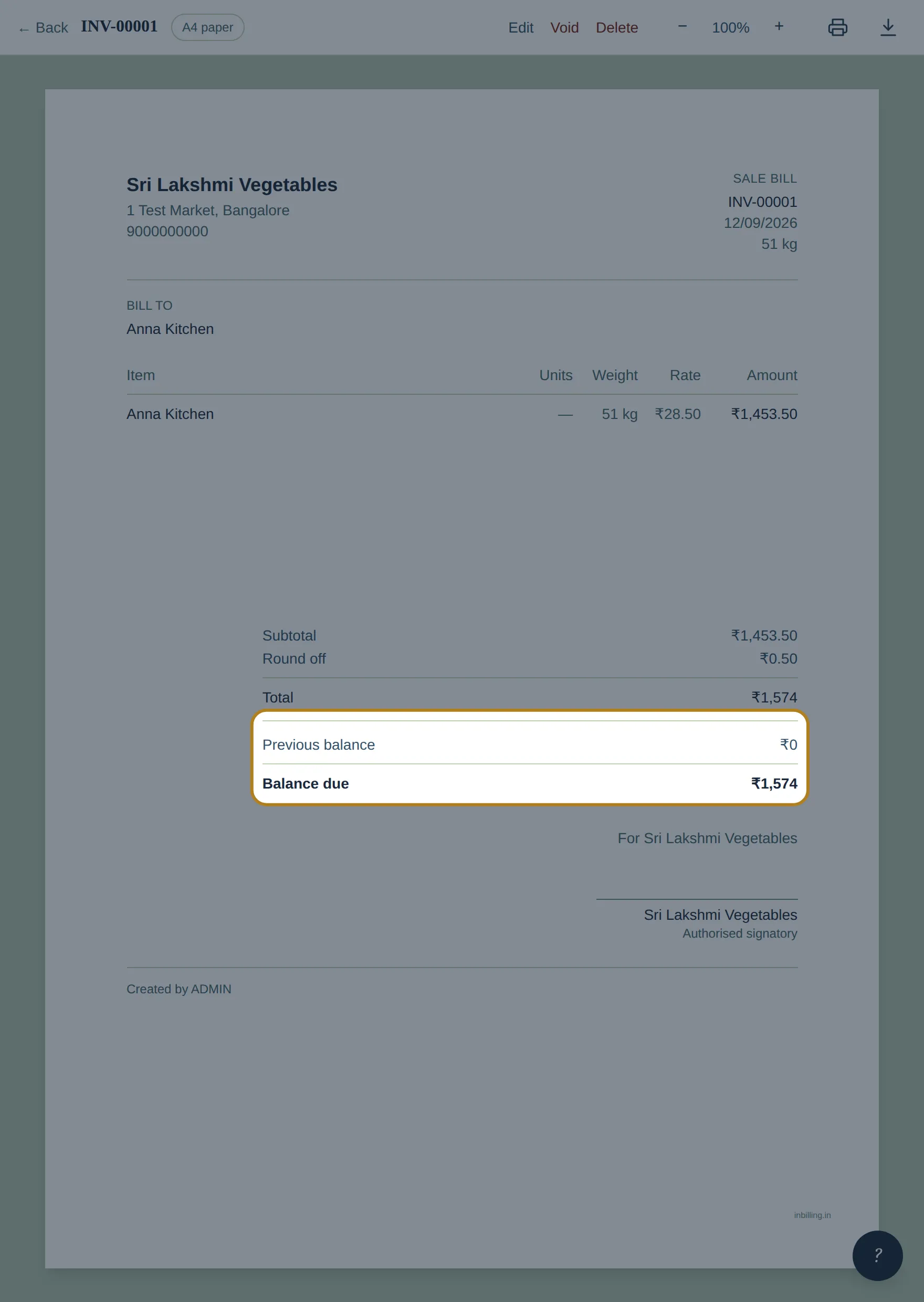
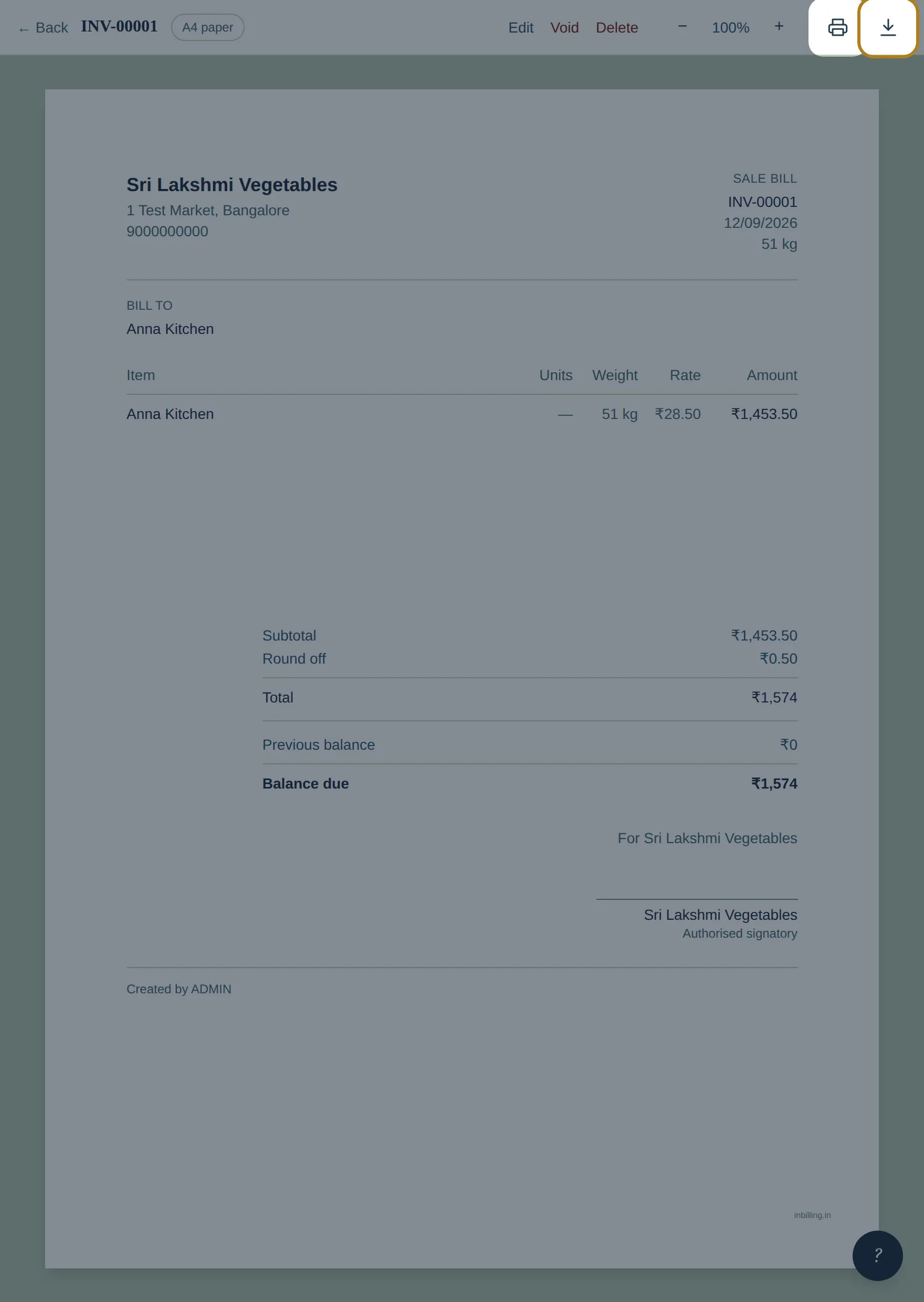
A saved bill, opened again. Edit, Void and Delete sit at the top left; Print and Download PDF at the top right.
Tomorrow · 5:50 am
How do I change an item’s price?
For one bill only, overtype the rate on the bill line. For every bill from now on, open Items and change the Price there. Bills you already saved never change either way.
The market opens and tomato has dropped to ₹24. Picking the wrong one of these two is the most common mistake a new user makes.
- Just for today’s bill — overtype the rate on the line, the way you did in Task 2. The item is left alone.
- For every bill from now on — open Items, click the item’s name, change Price, save. The next bill fills in at the new rate on its own.
- Bills you already saved do not move. Every line keeps the rate you agreed on the day, and that is what reprints.
Step 1 and step 3 are real screens. Step 2 happens in the Add item dialog you saw in Task 1 — the same box, with the item already in it.
That is the whole day
List it, bill it, collect, check, reprint, reprice. Everything else in InBilling — GST returns, mandi pattis, purchase registers, the balance sheet — is a road you take later, if your business needs it. These six are the road you are on now.
If you get lost, ask the program
Nobody remembers where everything is on day one, and you do not have to. Every signed-in screen has a small ? circle at the bottom right — and F1 opens the same thing from anywhere, even mid-bill.
- Type what you want to do in your own words — “customer paid me”, “print a ledger”, “old bill”. Not the name of the screen; you do not need to know it.
- It names the screen that does it. Press Where is it? and it tells you the walk — “From Home, open Data entry, then Payment received.” — so next time you go there yourself.
- Or press Open and it takes you straight there. Esc closes it.
It never points at a screen your login cannot open, and there is no service behind it: the answers live on your computer, like everything else in InBilling.
One more, before you go home
The whole financial record of the business sits in one file on one machine. A backup on that same computer is no help at all when the computer is stolen, drowned, or simply stops.
- Open Settings › Backup.
- Choose the folder — a pen drive or a second disk is the point — how often to back up, and how many to keep.
- Press Backup now. Take the pen drive home with you.
Common questions
What if I cannot find a screen?
Do I need internet to use InBilling?
What can I do during the 15-day free trial?
If I change an item’s price, do my old bills change?
Where is the customer ledger if my shop is not registered under GST?
How do I reprint several old bills at once?
Can I run two businesses on one computer?
Does the printed bill show GST?
What if I forget my password?