What do you want to do?
Record a payment received and print the receipt
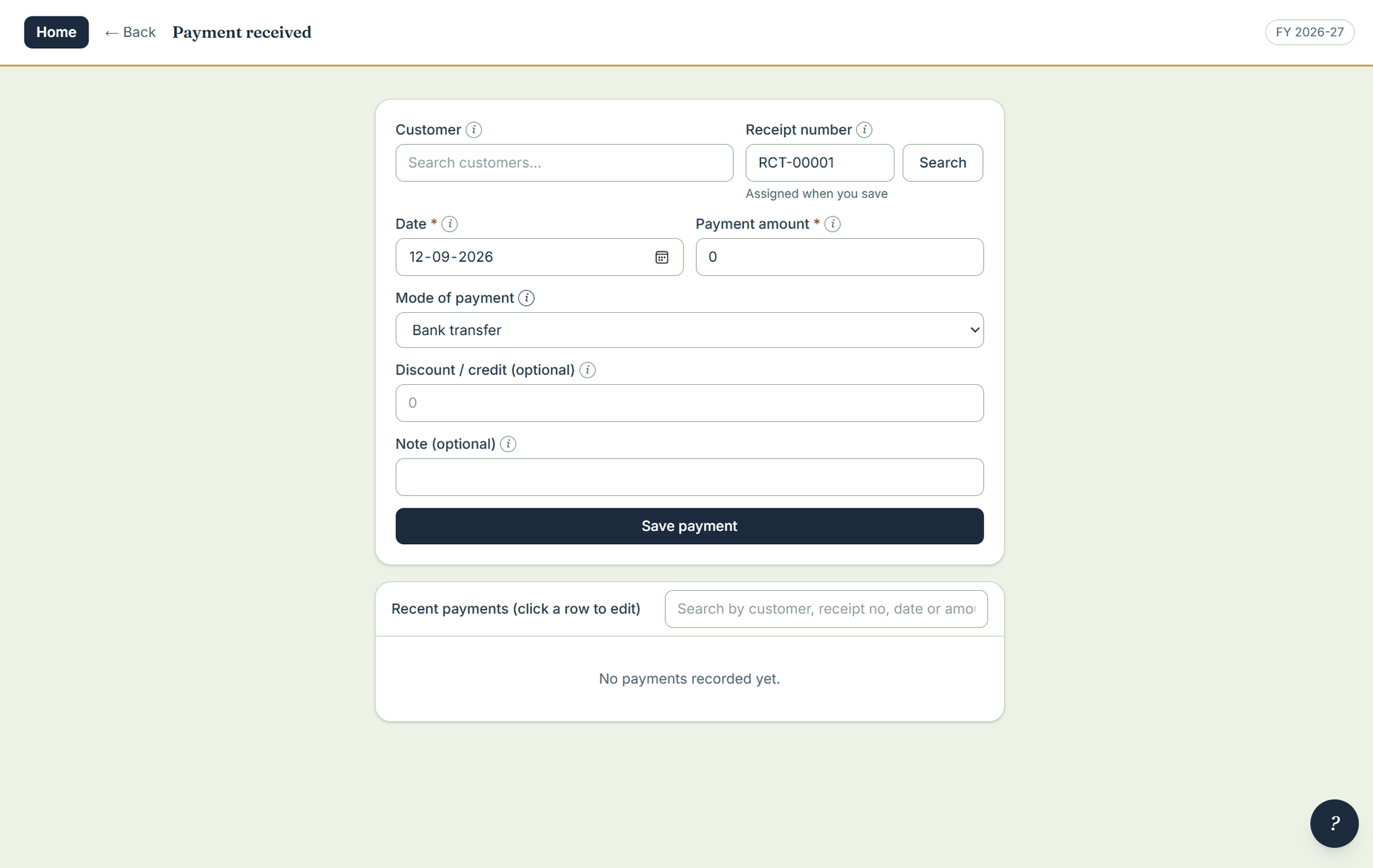
A payment takes a date, an amount, a mode and an optional discount or credit — and both the amount and the credit post against the customer’s balance. A return or a spoilage allowance is just a payment of nil with a credit on it, so there is no separate concept to learn.
Where to click
- Open Payment received under data entry.
- Pick the customer, the date and the amount.
- Choose the mode: cash, UPI, bank transfer, cheque, or a mode you add yourself.
- Add a discount or credit if you are allowing one — it posts against the balance along with the amount.
- Save. The payment gets a receipt number of its own, which you can print now or reprint later.
Good to know
- Recent payments are listed beneath the form; click a row to correct yesterday’s entry without going looking for it.
- Saving a payment into a closed year warns first, then recalculates every later year.